GUIDES

SETUP & TROUBLESHOOTING
PAST PRODUCTS
LOCATIONS

Getting Started

Choosing a DAC/Amp

So you don't want to give up a lot of desk space, but you want better sound. Good news! We have plenty of one-box options. 


Fulla E, $109. Fulla plugs into virtually tablet, computer, or phone and drives most headphones with ease. It also provides a microphone input, so it is perfect for gaming or home office use. 

Choose Fulla E for:

Home office or gaming
Most bang for the buck
Most headphones

See Fulla E


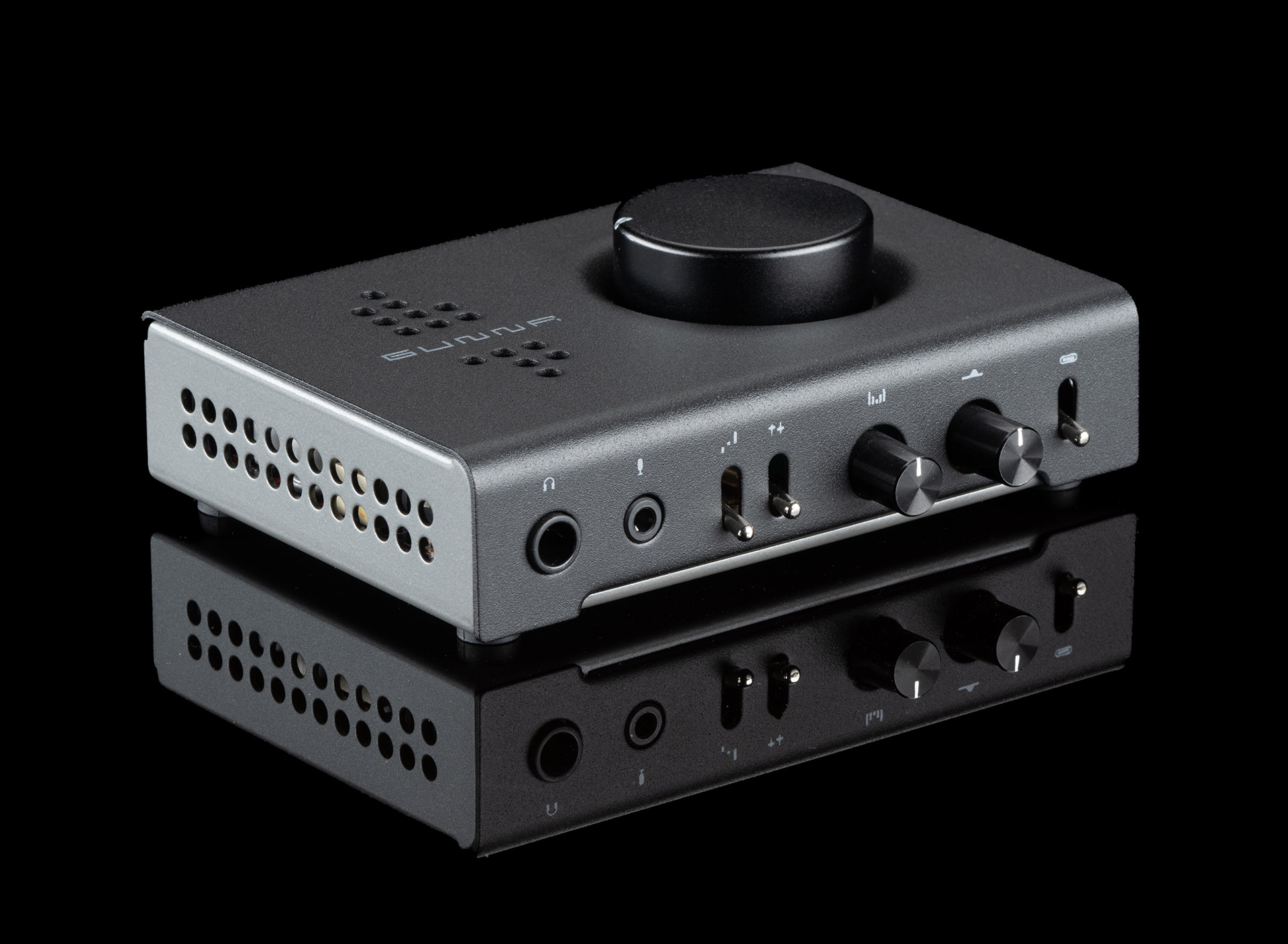
Gunnr, $229. Gunnr gives you the power and flexibility you need for virtually any headphone on virtually any desktop. 

Choose Gunnr for:

The ultimate gaming or office rig
Exclusive Soundstage Control that enhances games and music
Unique Linear Override for portability and power

See Gunnr


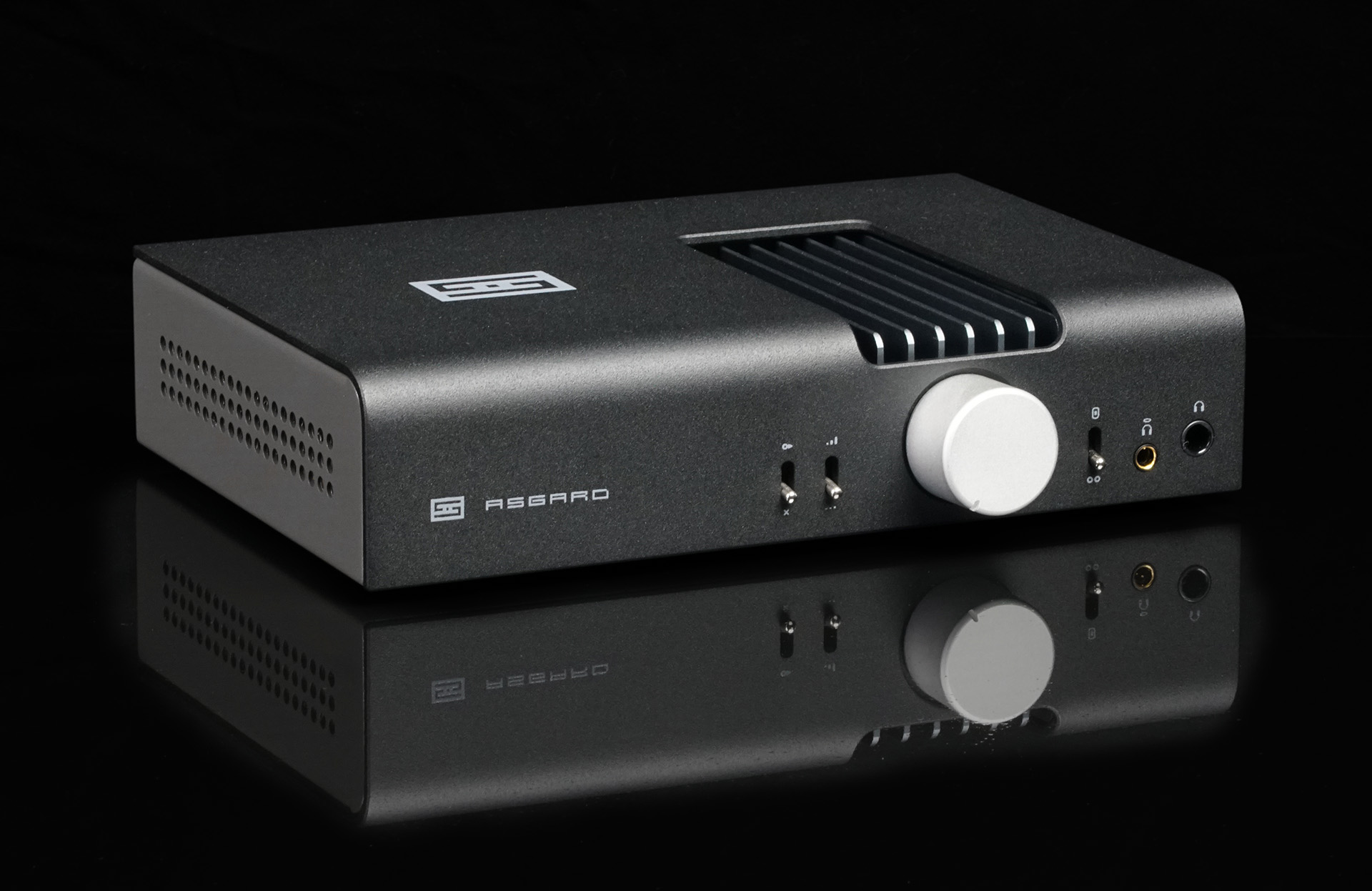
Asgard X, from $399. Asgard X is a Class A, zero feedback headphone amp and preamp with an optional Mesh™ DAC module to make it a Forkbeard™-enabled all-in-one. 

Choose Asgard for:

True Class A, zero feedback design
Single-box desktop DAC/EQ/amp solution with an added DAC card
No obsolescence—modular and upgradable for the future

See Asgard X


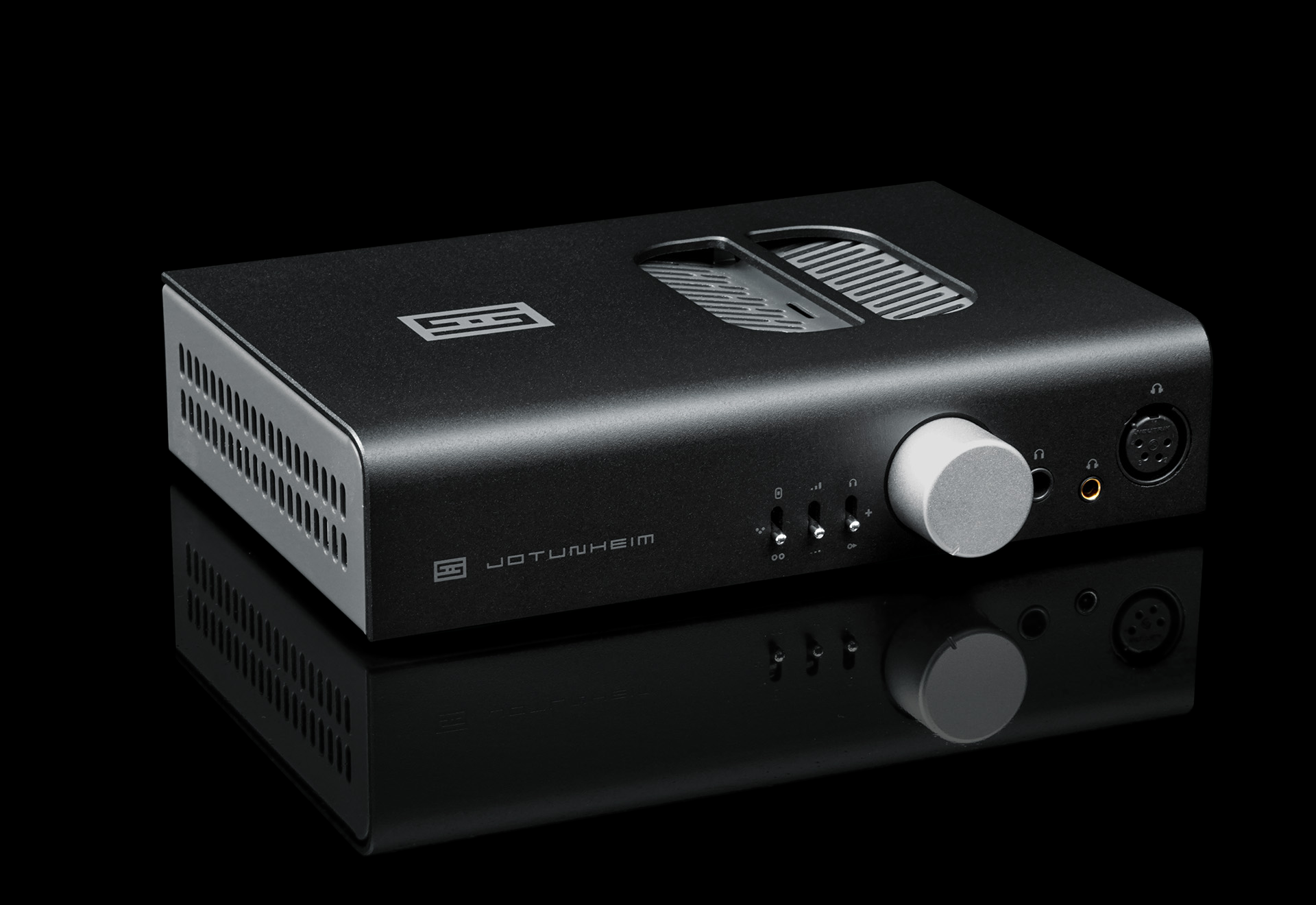
Jotunheim 3, from $499. Jotunheim 3 is a fully balanced amp that works perfectly with pretty much any headphone. Plus, you can add the Mesh™ DAC module to make it an all-in-one.

Choose Jotunheim for:

Tons of power, end-game performance for both balanced and single-ended headphones
Single-box desktop DAC/EQ/amp solution with an added DAC card
No obsolescence—modular and upgradable for the future

See Jotunheim 3

Choosing a Headamp

How do you pick the best amp for your headphones? Well, let's boil it down by model:


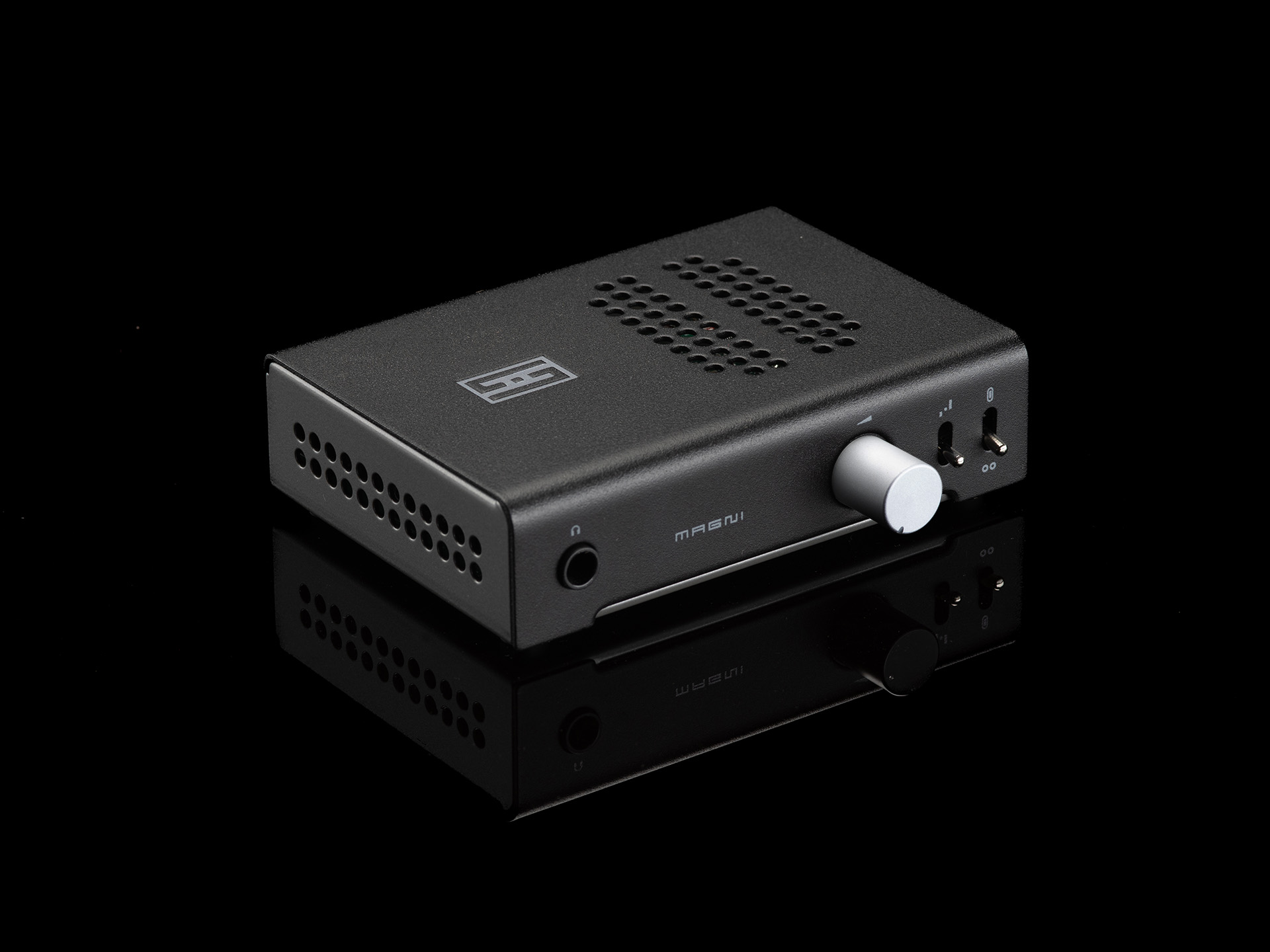
Magni Unity, from $119. When we say "this may be the only headphone amp you ever need," we really mean it. Magni will drive pretty much any hard-to-drive headphone out there. Plus, the optional internal DAC card makes it a great all-in-one.

iChoose Magni for:

Most bang for the buck
Most headphones, from IEMs to planars
All-in-one with optional DAC card

See Magni


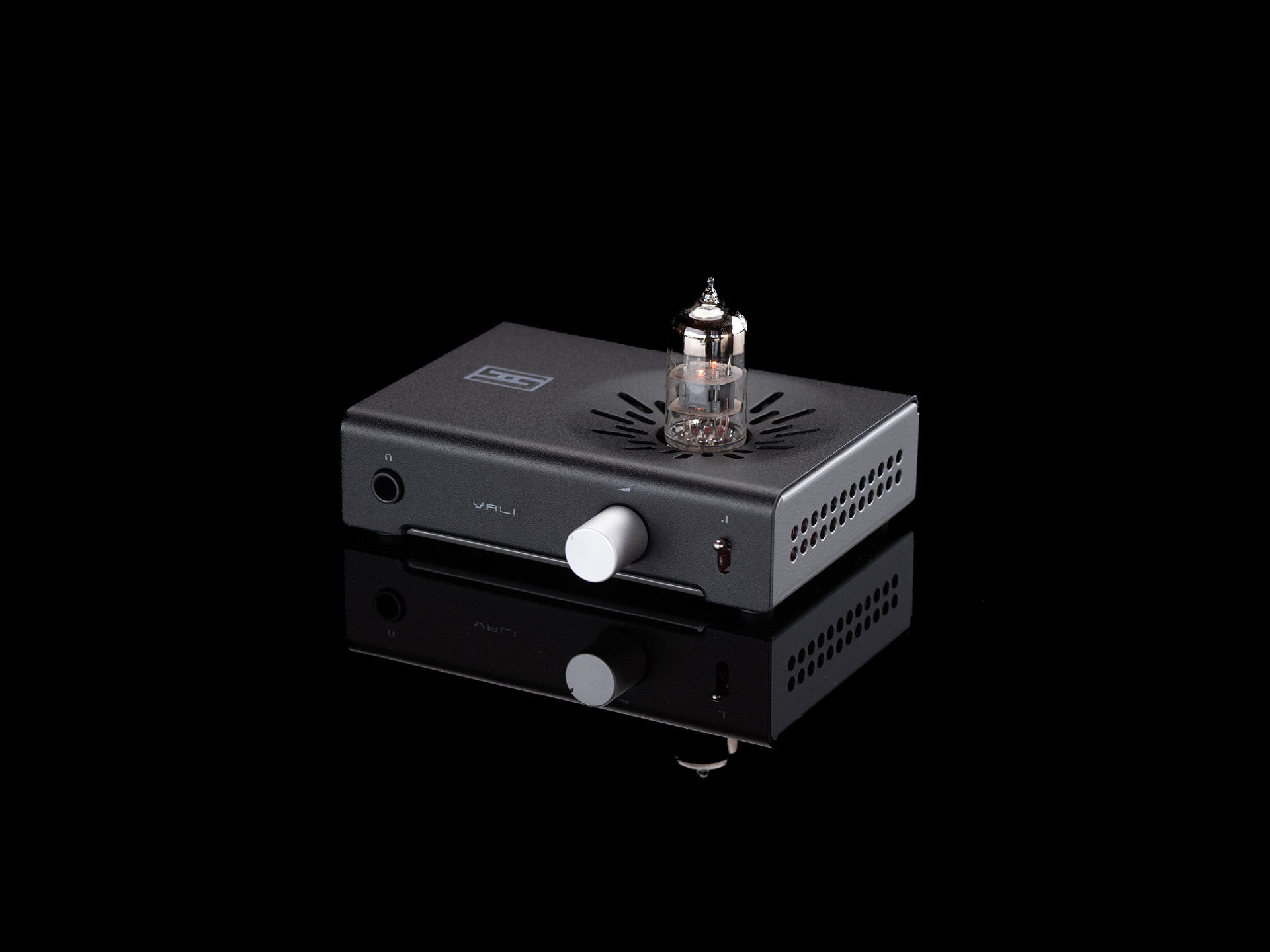
Vali 3, from $149. Want to get a taste of great tube sound, without the wallet-exploding price? Vali's for you. It's a serious tube amp, with a class-leading power supply with 100V on the plate.

Choose Vali for:

Great tube sound, and a very sexy chassis, at a very affordable price
The ability to "tube roll" and change the sound
Most headphones, from IEMs to planars

See Vali


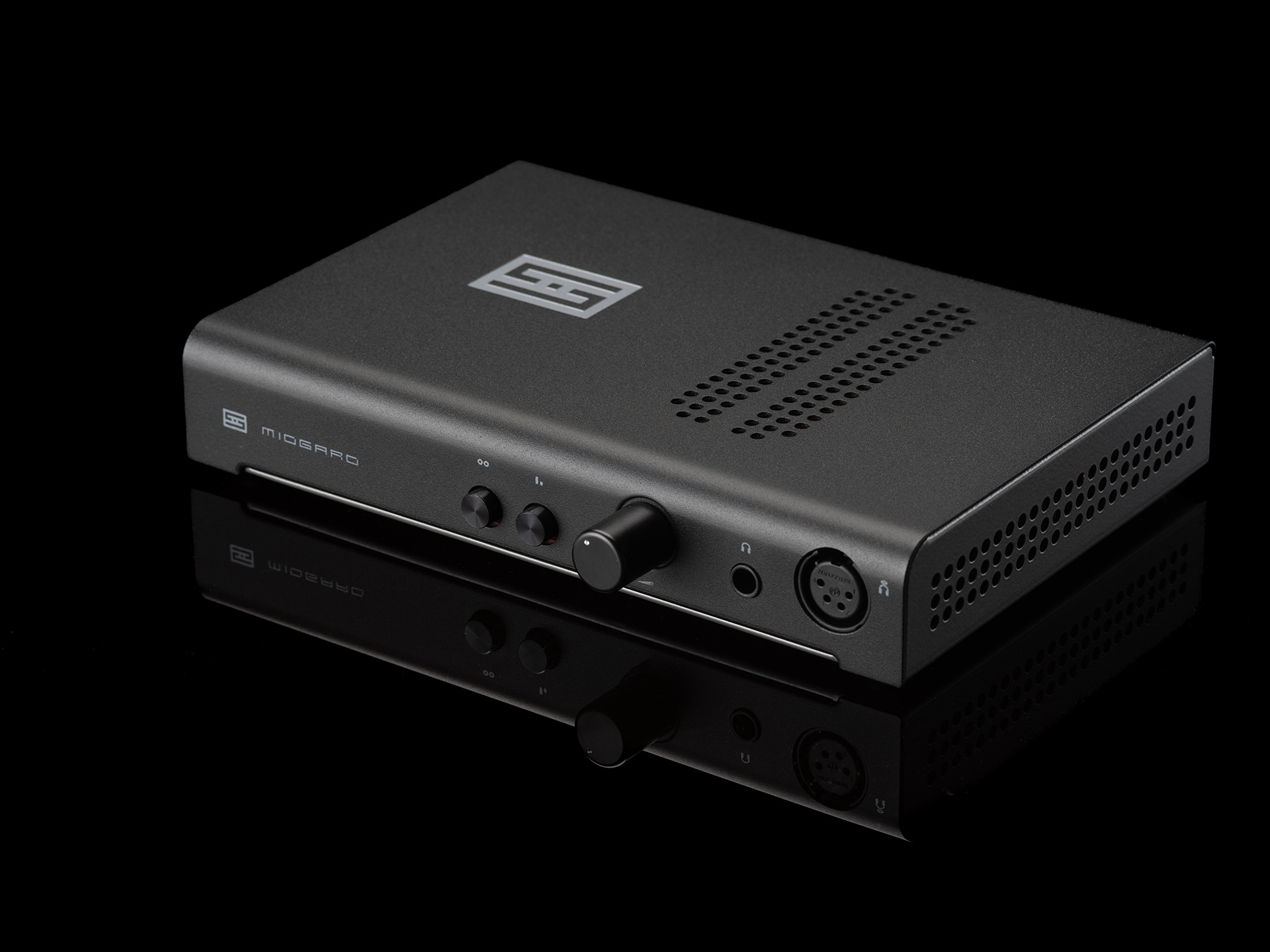
Midgard, $219. Simply the highest power, best measuring fully discrete amp we've ever made, and with Halo topology, can improve performance at the headphone itself.

Choose Midgard for:

Equal high power from 4-pin XLR and 1/4" headphone outputs
Fully discrete with Halo™ topology mixed-mode feedback
All headphones, from IEMs to planners

See Midgard


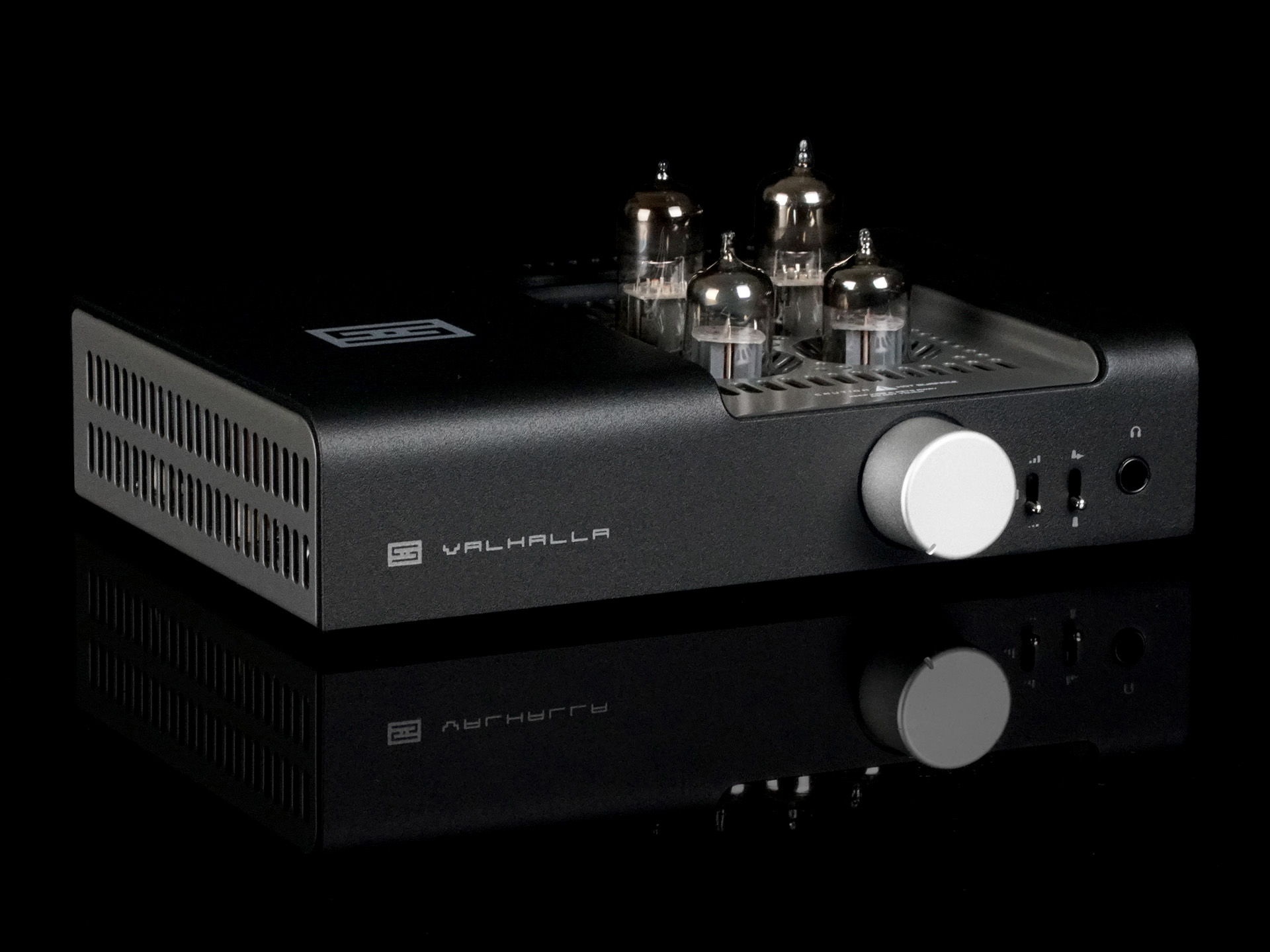
Valhalla 3, from $499. Unlike Vali 3, this is 100% tube gain. So if you want to be all triode, all the time, this is the amp you should be looking at.

Choose Valhalla for:

100% all-triode OTL/OCL pure tube stage
Flexibility from zero feedback to impedance multiplier
Most high and low impedance headphones

See Valhalla


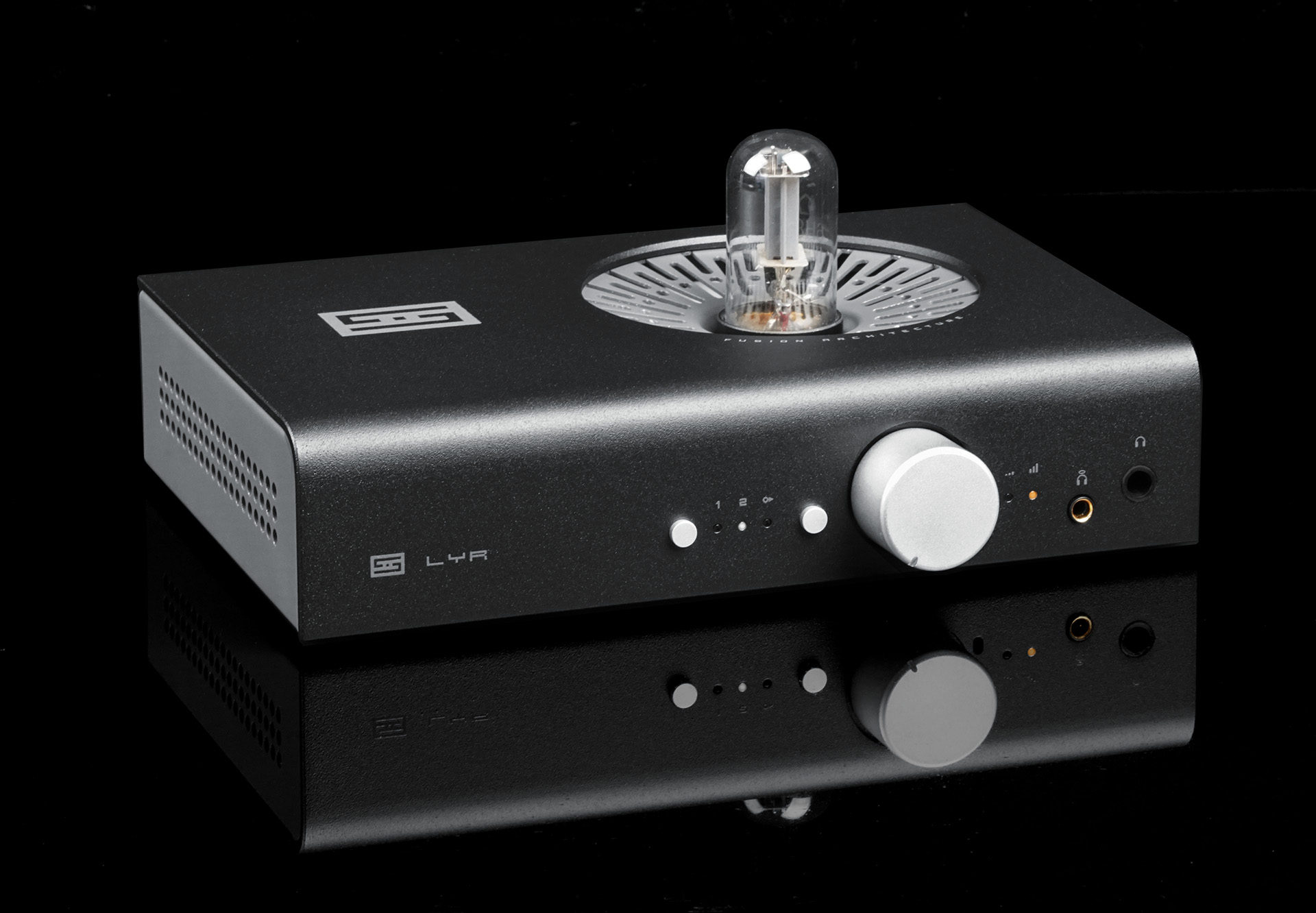
Lyr 5, from $799. The most-advanced desktop-friendly amp we've made, with Forkbeard, tube or solid state gain, relay volume, Continous Class A Monitoring, and more.

Choose Lyr 5 for:

Forkbeard control and integration
Unique Fusion Topology tube or no-tube gain stage with Halo
Plenty of power for any headphone

See Lyr 5

Choosing a DAC

Which DAC is best for you? Let's look at each model.


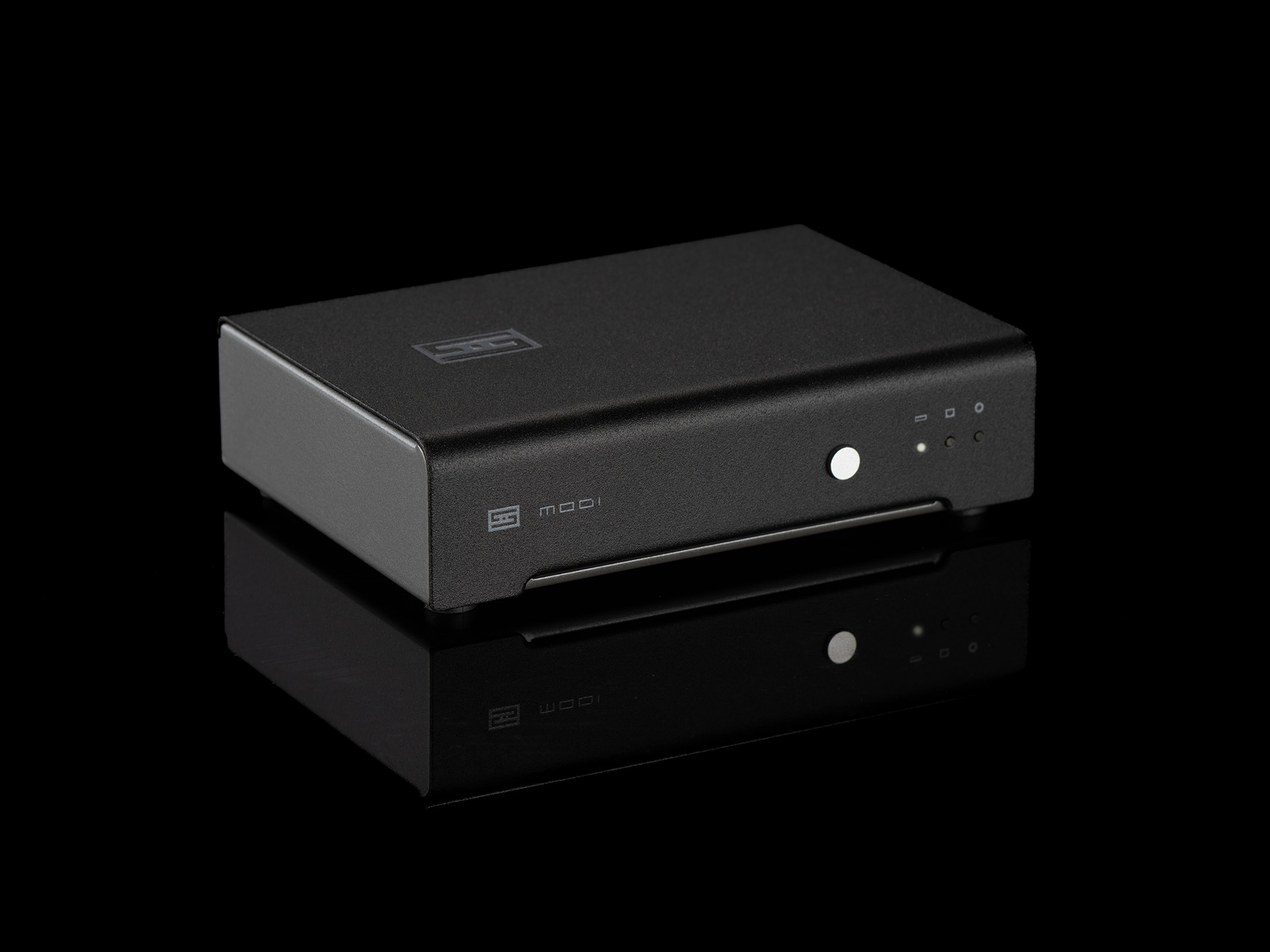
Modi 5, from $149. Modi 5 brings Mesh™ to our most affordable standalone DAC, with Unison 384 USB input, as well as optical and coax inputs.

Choose Modi for:

Most bang for the buck
Easy setup and great flexibility
Perfect stack with Magni and Vali

See Modi 5


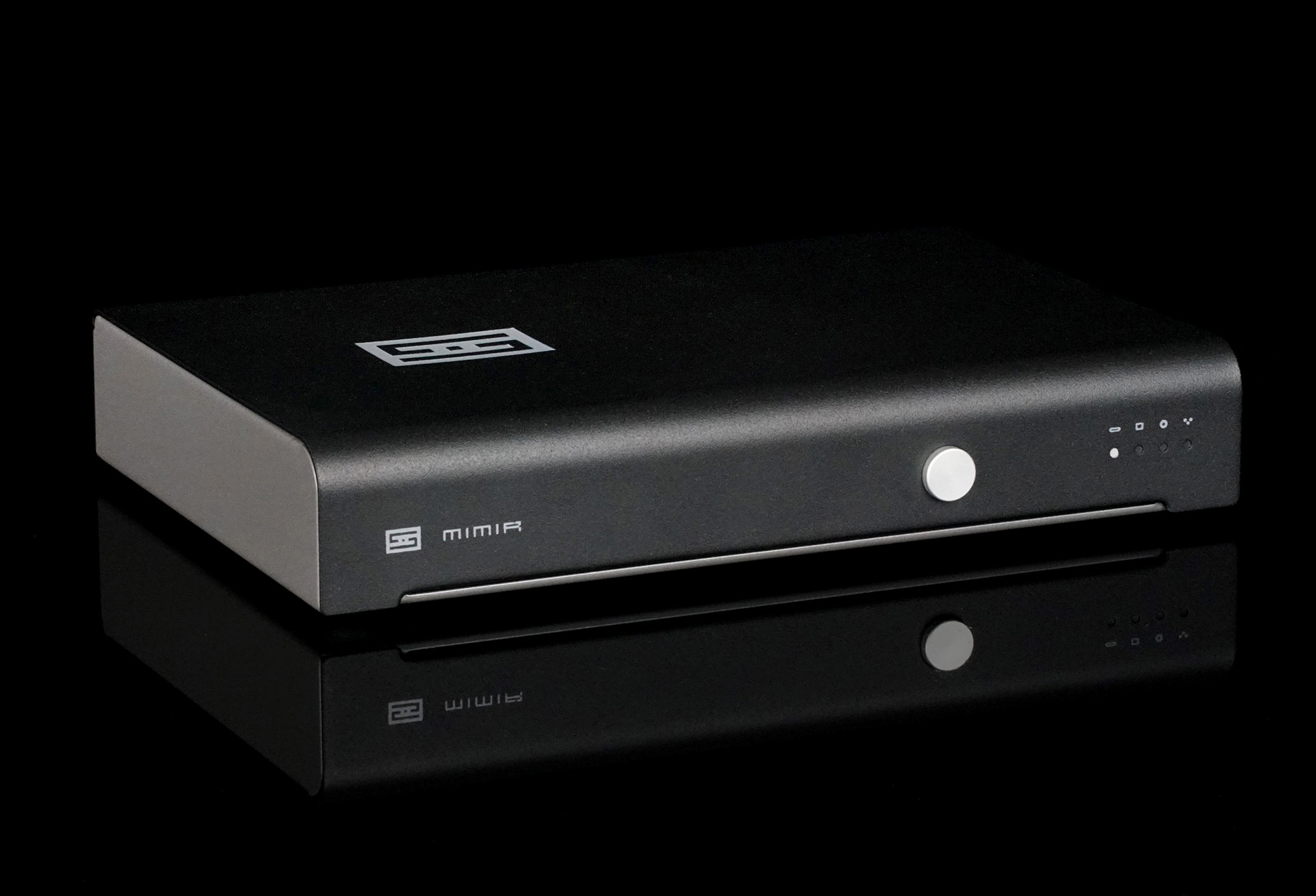
Mimir, from $299. Mimir is a 4-input, balanced-output, Mesh™ DAC with Unison 384. It also becomes a full digital preamp when a Forkbeard module is added, including volume, balance, loudness, and parametric EQ.

Choose Mimir for:

Any balanced or single-ended system
Perfect form factor match to Midgard, Jotunheim, Lyr, and Saga
Digital preamp and EQ via Forkbeard

See Mimir


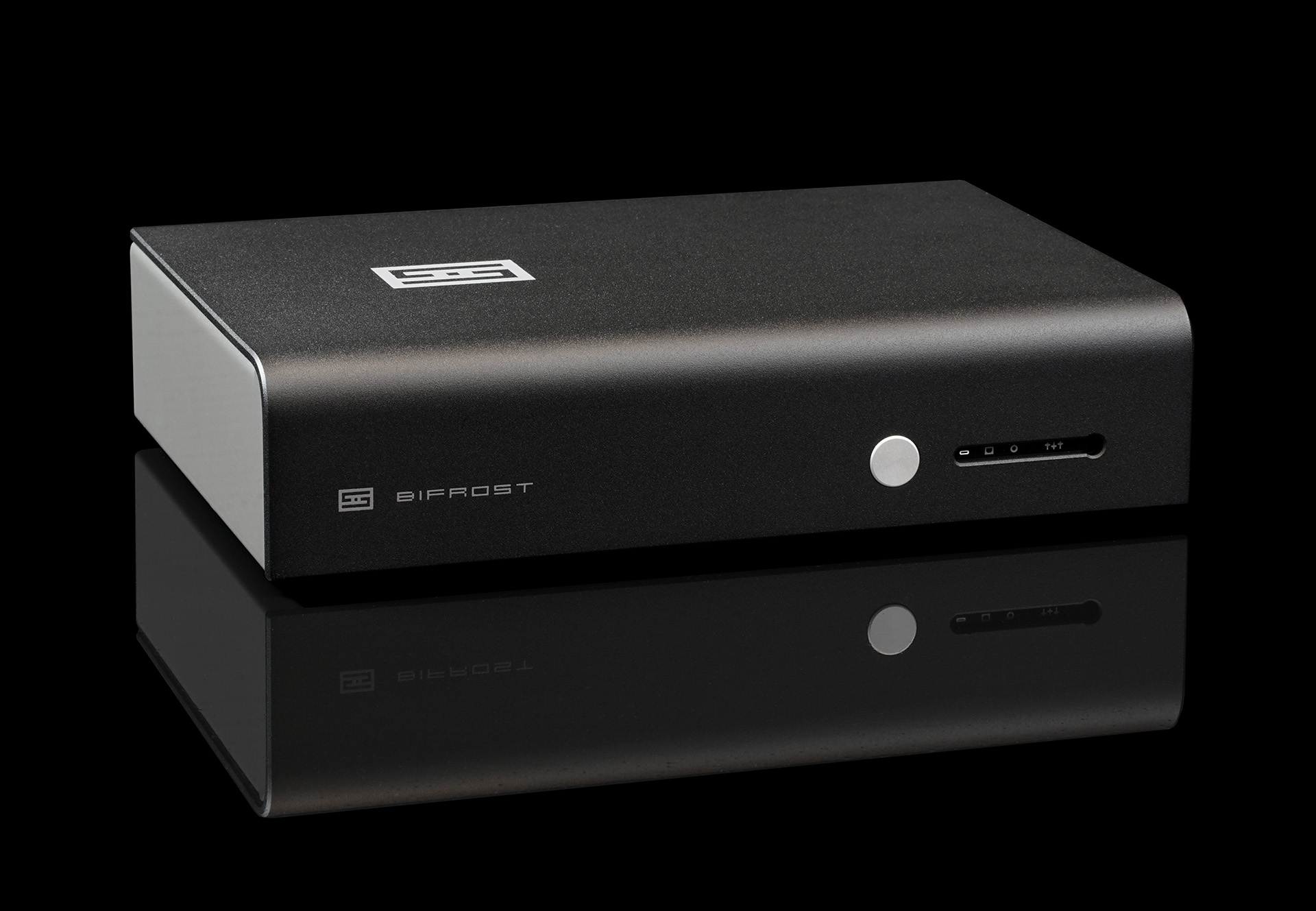
Bifrost 3, from $699. Where Modi is about bang for the buck, Bifrost steps up the game. Ultimate Mesh™ pairs DSP-based oversampling with a latest-gen ESS DAC for superb sound and excellent measurements, and the included Forkbeard™ module adds volume, parametric EQ, and system-wide control. Its modular design means you won’t be left behind as DAC tech changes.

Choose Bifrost 3 for:

Ultimate Mesh™ performance with Unison 384 USB input
Built-in Forkbeard™ preamp and EQ
Modular design with over-the-air updates

See Bifrost 3


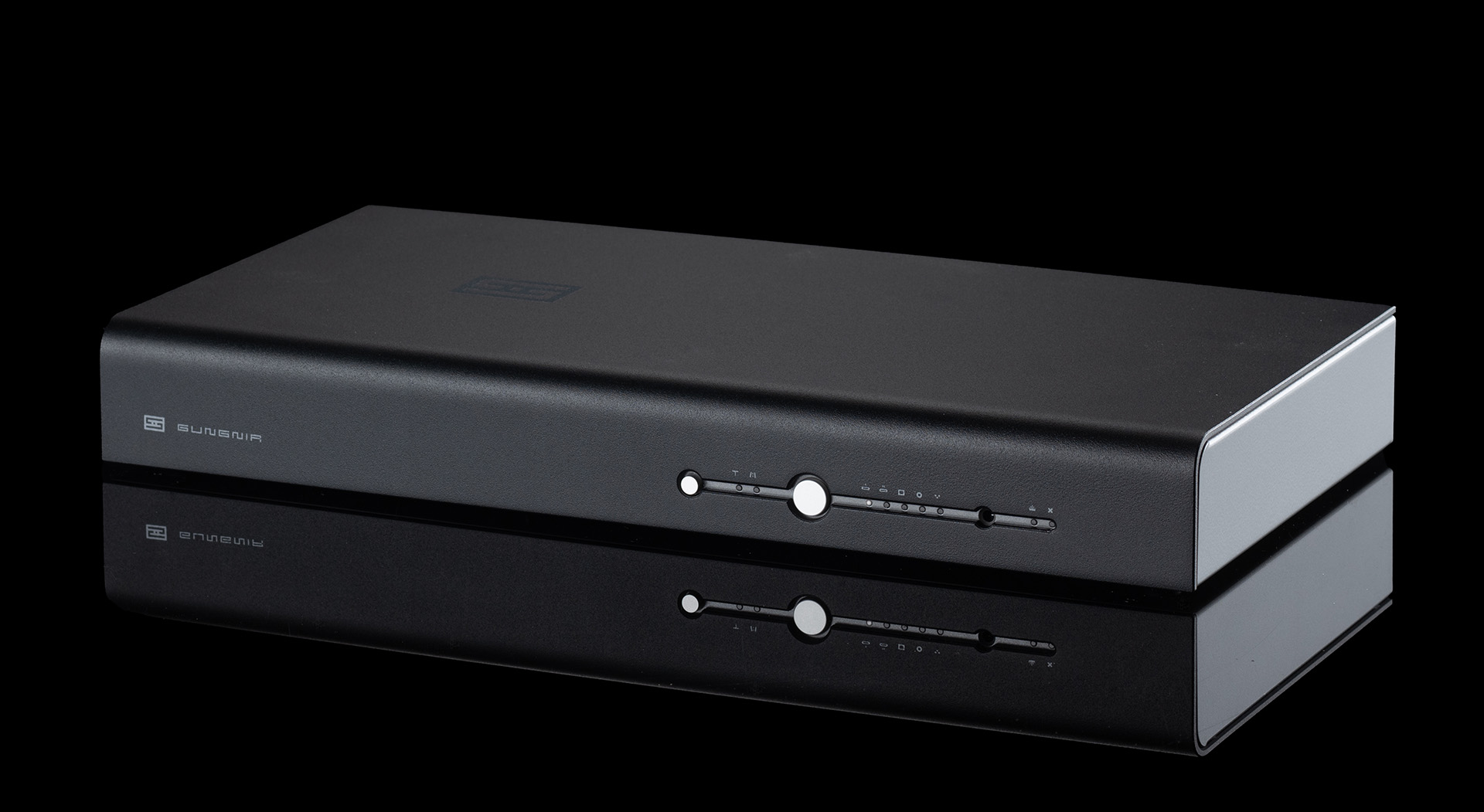
Gungnir 2, from $1549. Gungnir 2 is a 5-input, balanced Multiform™ DAC with two USB inputs, including Unison 384. It also becomes a full digital preamp via Forkbeard including volume, balance, loudness, and parametric EQ. Also, with Autonomy 2™ for over-the-air updates and modular construction, it easily keeps up with the times.

Choose Gungnir 2 for:

Multiform multibit performance with high-rate Unison and two USB inputs
Full digital preamp and DSP-based 5-band PEQ via Forkbeard
Over the air updating and modular construction

See Gungnir 2


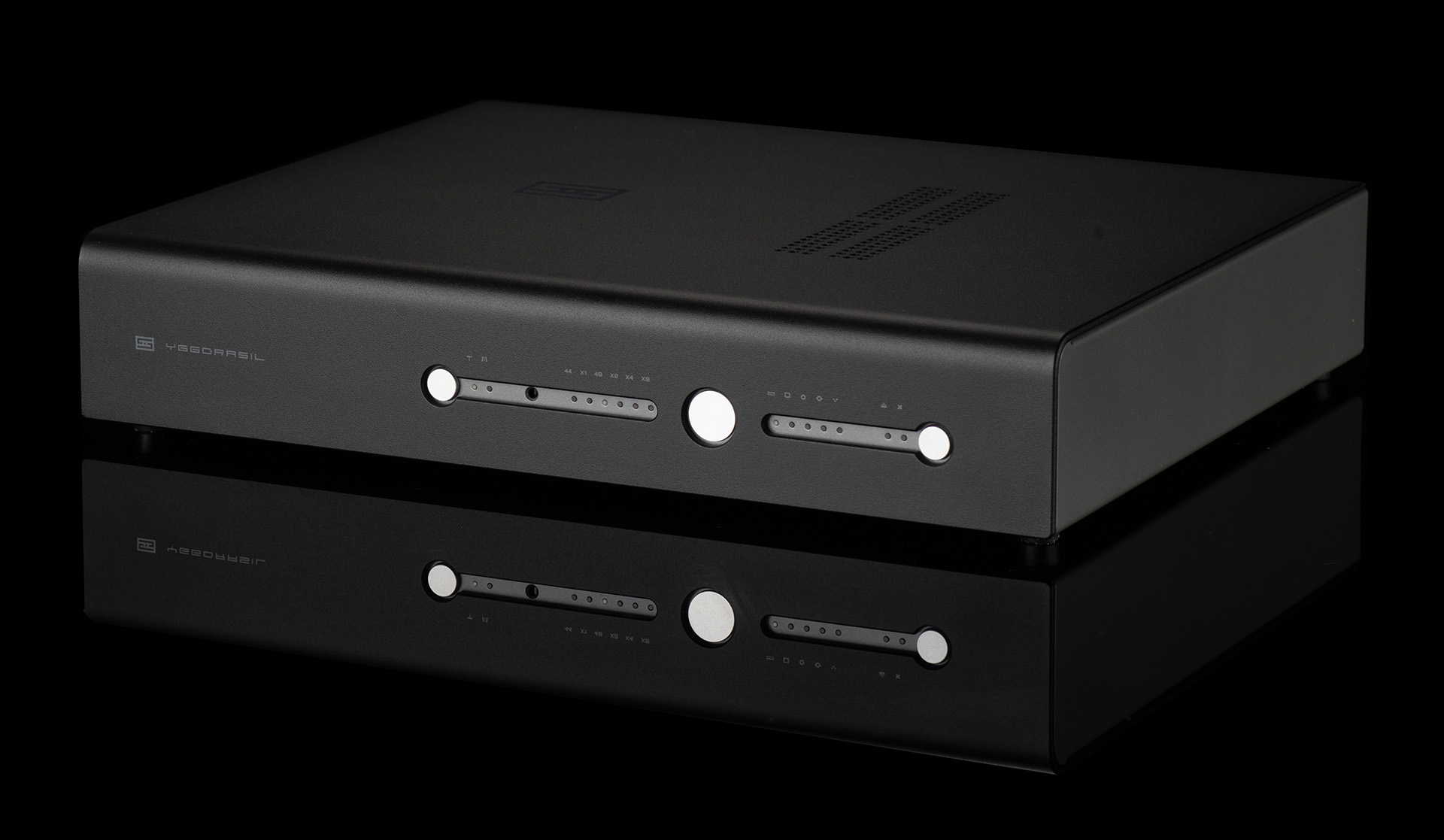
Yggdrasil+, from $2299. Yggdrasil is a complete re-thinking of what an "end game" DAC should be. As a Singular™ or True Multibit™ DAC, Yggdrasil can easily be your Forever DAC.

Choose Yggdrasil for:

Multibit and Singular options witht two high-rate Unison 384™ inputs
Optional full digital preamp and DSP-based 5-band PEQ via Forkbeard
Fully modular construction

See Yggdrasil

Choosing Amps & Preamps

New to the world of speaker amps and preamps? Unsure what you need? Don't panic. We'll help:


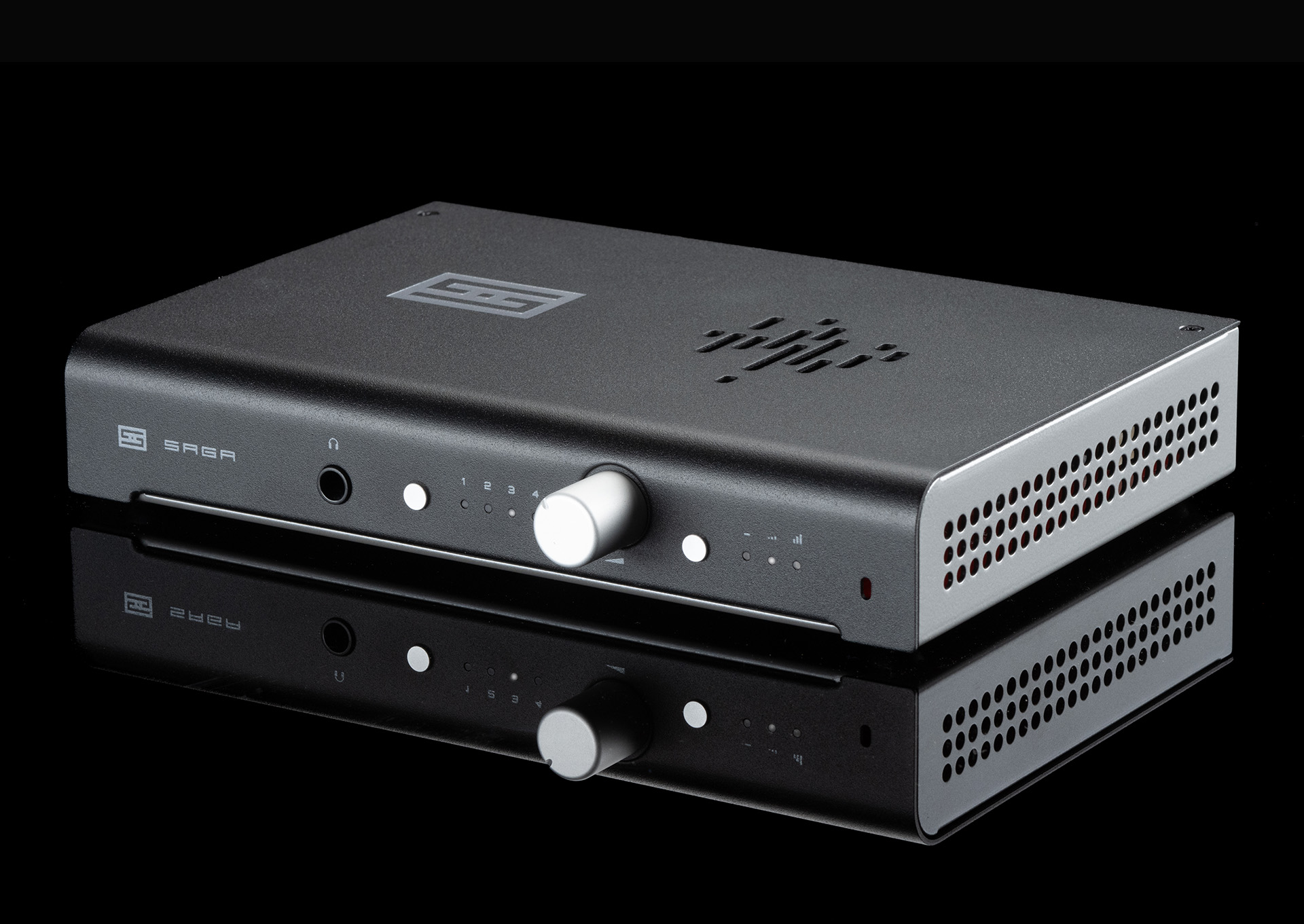
Saga 2, from $279. Choose Saga 2 for the highest value preamp in the world. Literally. There's nothing like this for anywhere near the price.

Choose Saga 2 for:

Discrete, Class A, differential, zero-feedback gain stage with 2 settings
Relay switched stepped attenuator for perfect volume matching
IR remote control standard; Forkbeard™ optional

See Saga 2


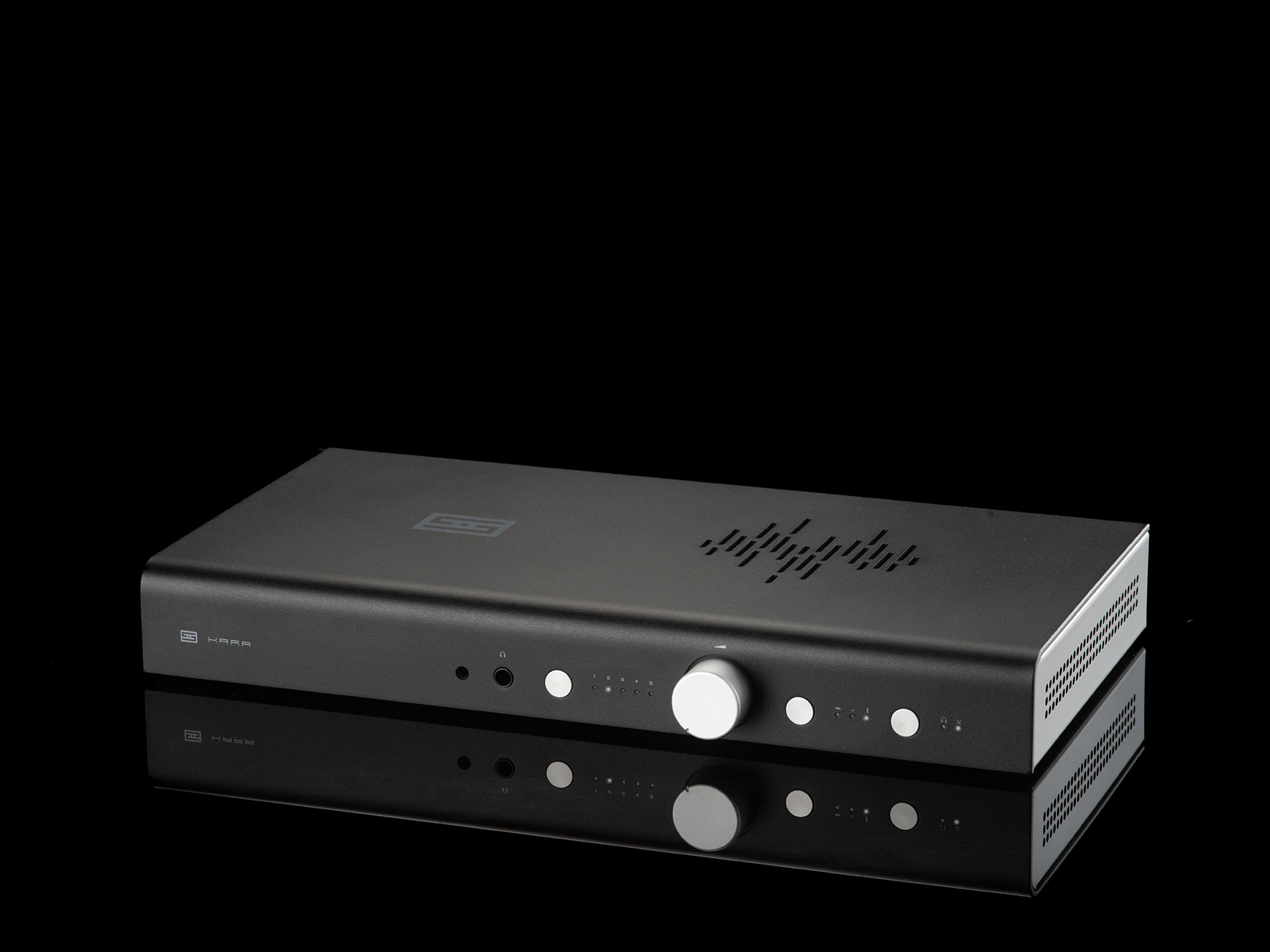
Kara F, from $749. Kara is a true end-game, solid-state balanced preamp...without a mortgage-worthy price. With a balanced 128-step relay volume, balanced inputs and outputs, and remote control, it has everything you need.

Choose Kara F for:

Differential, discrete, Nexus™ topology
Forkbeard™ and IR remote standard
State of the art measurements

See Kara F


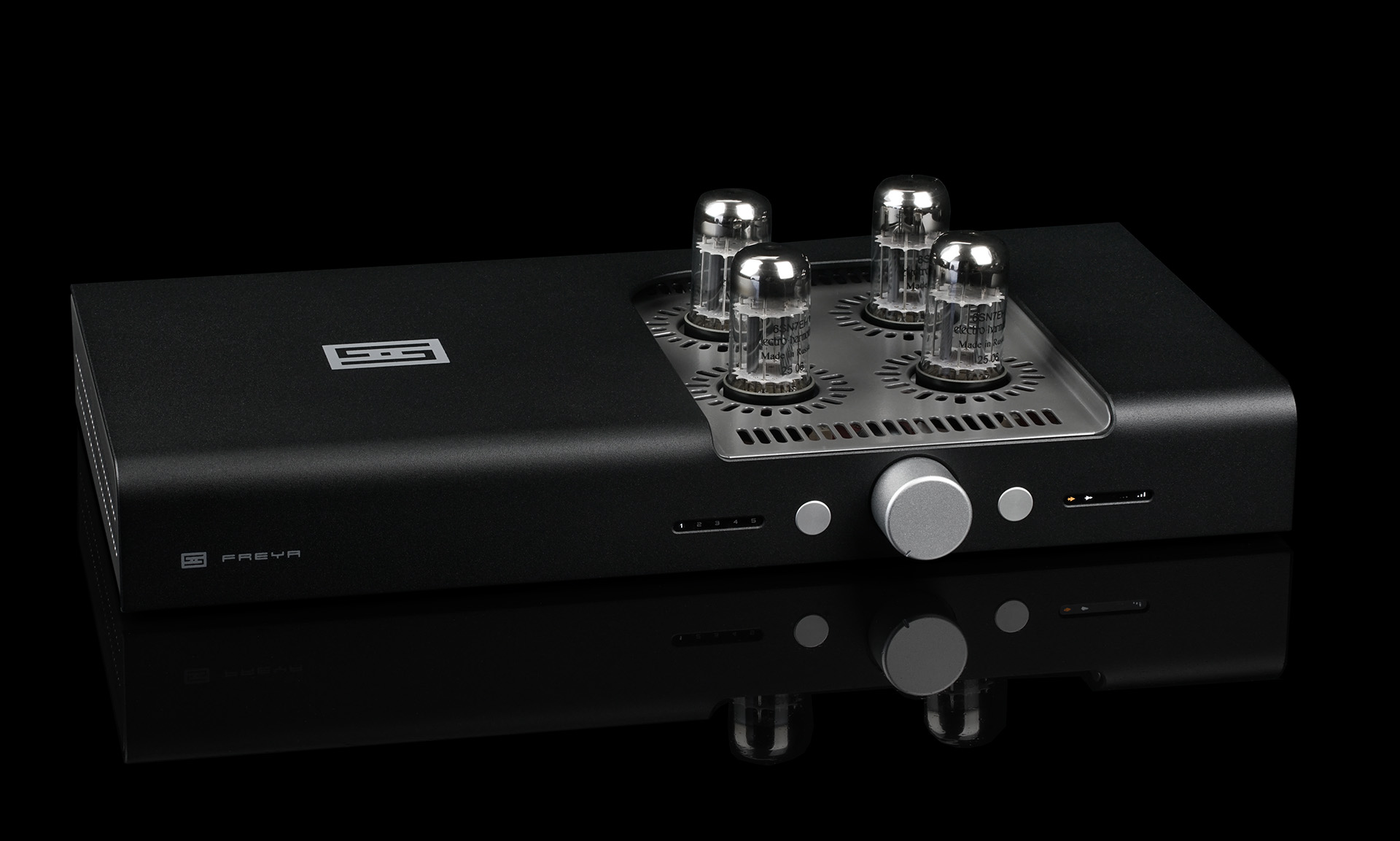
Freya 2, from $999. Want tubes...or not? Freya 2 is a pure tube preamp with the comfort of solid state. Run all 4 tubes with no solid state in the signal path, switch to its depletion-mode MOSFETs when you’d rather skip the tubes, or use tubes just for input or just for output.

Choose Freya 2 for:

100% tube, solid-state, or mixed mode
Relay-switched stepped attenuator for perfect channel matching
Forkbeard™ and IR remote standard

See Freya 2


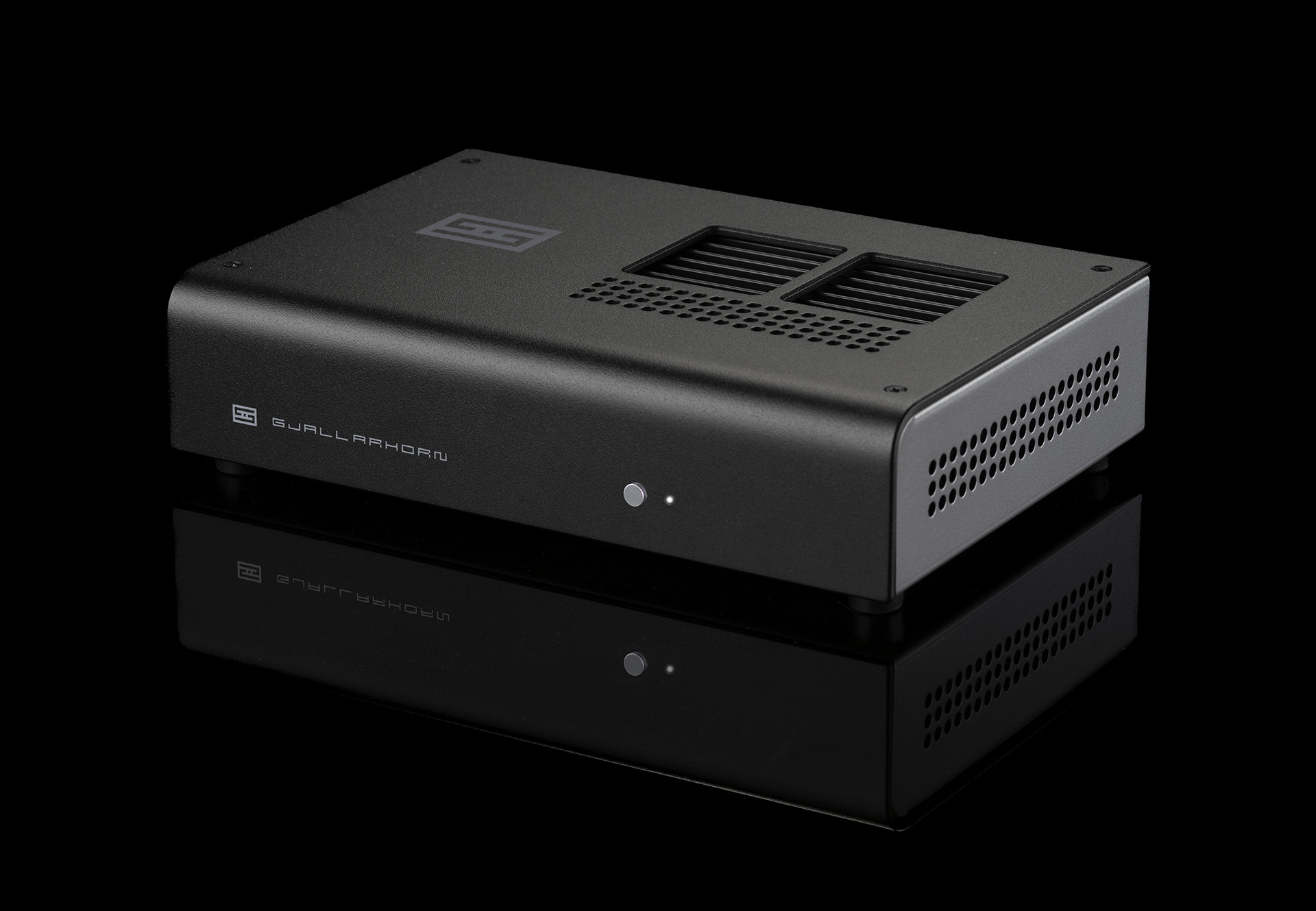
Gjallarhorn F, from $299. Want great sound on your desktop, or in a nearfield system, or even in a small room? Gjallarhorn is a great way to do that, without taking up a lot of space.

Choose Gjallarhorn F for:

Desktop, nearfield, and small room systems
Continuity S™ performance
Ability to run in mono from balanced sources

See Gjallarhorn F 


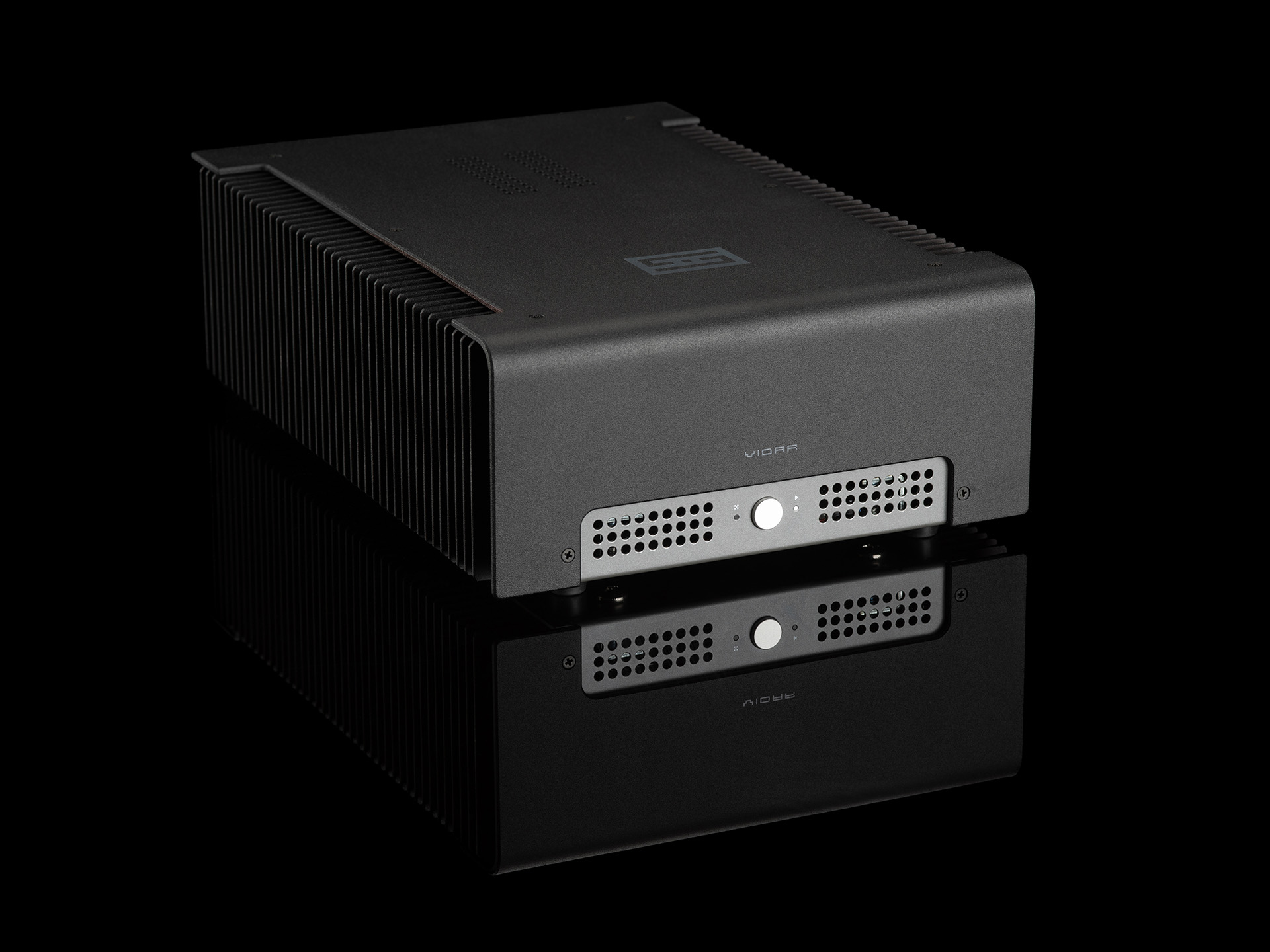
Vidar 2F, from $799. Here's the one amp you need–capable of driving virtually any pair of speakers out there with power and authority, and without the "Class D" and "switching supply" compromises you usually see at this price.

Choose Vidar 2 for:

Exceptional power and control
Forkbeard™ standard—power output, system health, and more
Ability to run in mono at 400W into 8 ohms

See Vidar 2F


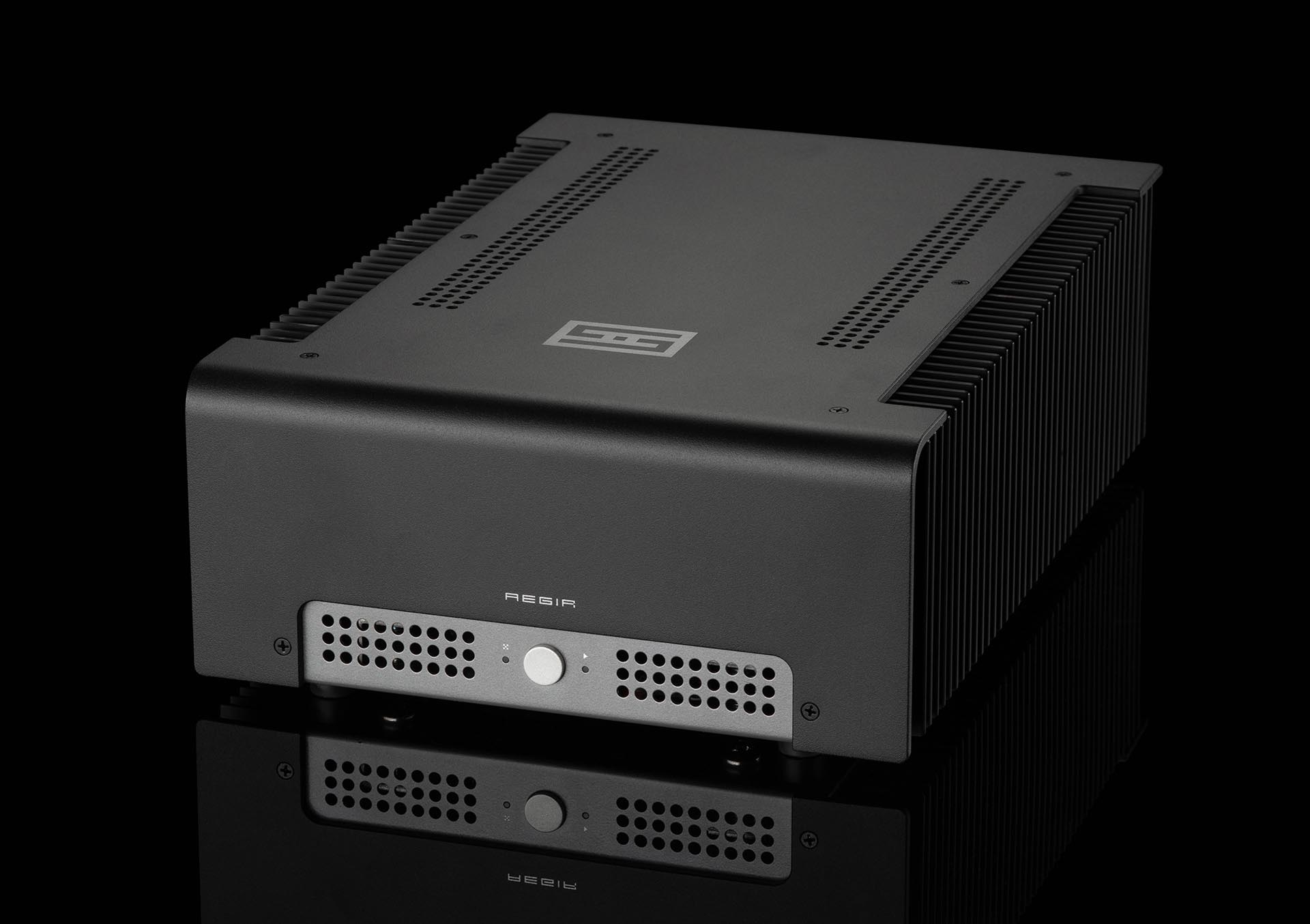
Aegir 2F, from $949. Depending on your point of view, this is either a lower-power Vidar 2, or a higher-quality, power-limited amp using our unique Continuity™ constant-transconductance output stage. Both views are valid.

Choose Aegir 2F for:

Excellent sonics with efficient speakers
Forkbeard™ standard—power output, system health, and more
Ability to run in mono at 80W into 8 ohms

See Aegir 2F


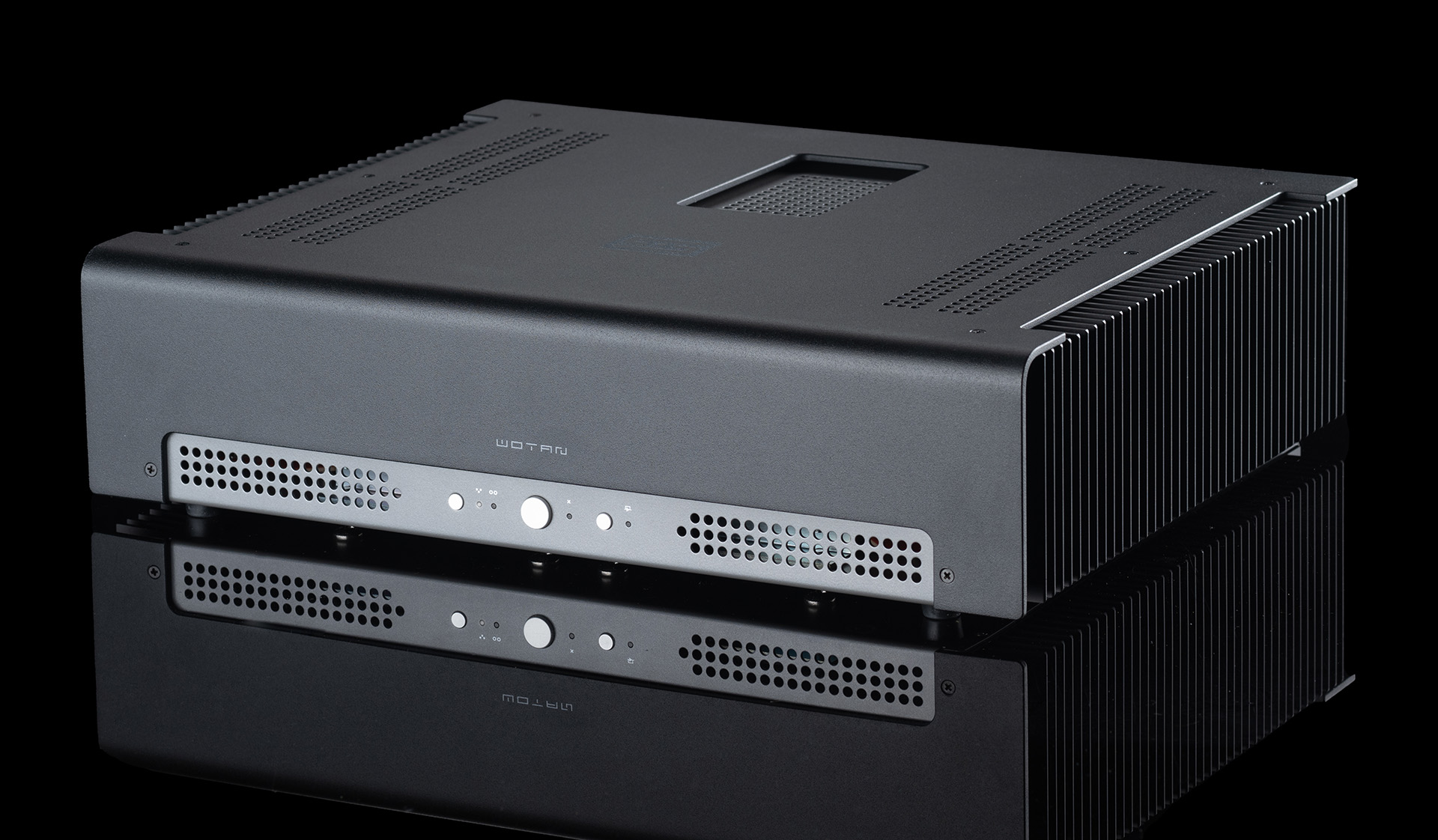
Wotan, from $1949. This high-power dual-mono Nexus™ differential amplifier with Forkbeard™ standard will drive pretty much any speaker on the planet, with ultimate finesse, to ear-bleeding levels. Get one and be done.

Choose Wotan for:

Ability to drive any speaker with 200Wx2 into 8 ohms, 400Wx2 into 4 ohms
Forkbeard™ standard—power output, system health, and more
Switchable overall feedback for more system matching options

See Wotan


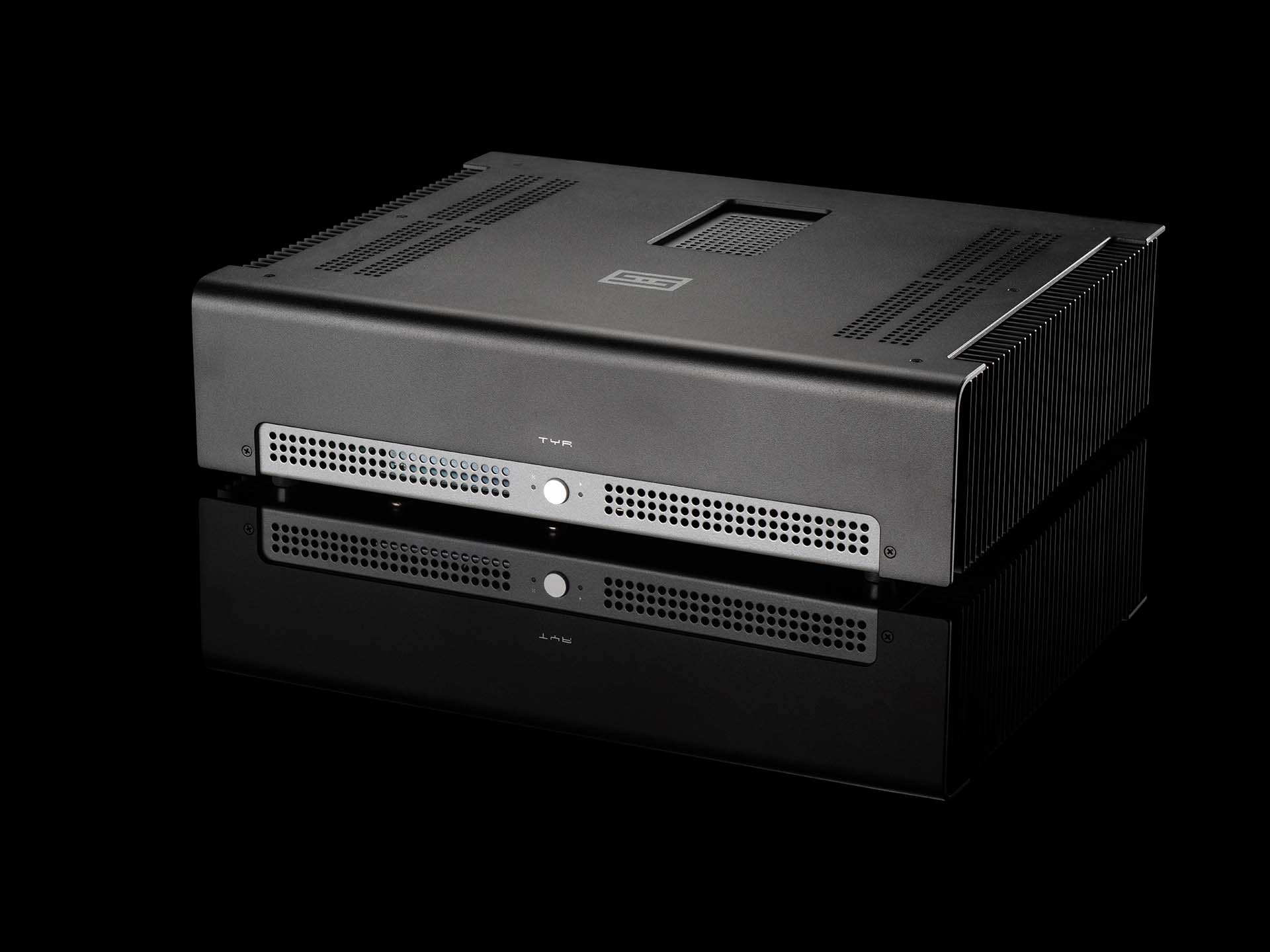
Tyr F, from $3298 for a stereo pair. This is our all-out, totally-nuts, Nexus and Continuity™ choke-input monoblock power amplifier. At 50 lbs each, and 2 required for stereo, Tyr F is the top of our amp line.

Choose Tyr F for:

Ultimate sonic performance for virtually any speaker
High power, 200W into 8 ohms and 350W into 4 ohms
Forkbeard™ standard—power output, system health, and more
Complete safety with intelligent protection

See Tyr F

GigaStack, from $4247. Completely over-the-top, completely Forkbeard-enabled, this is the system you choose when you want to be done with the audio merry-go-round.

A GigaStack includes:

Gungnir 2 Multiform™ DAC wth Unison 384™
Kara F or Freya 2 Preamp (choose one)
Wotan Nexus™ differential power amp

See GigaStack

Choosing an EQ

Tweak the sound of your system to your preferences with our EQs.


No EQ, $0. Let's start with no EQ at all. Many audiophiles think the best EQ is no EQ, because they believe the less in the signal path, the better. That's cool. They also maybe have perfect systems and perfect recordings that need no help from EQ. But, let's be clear: you don't need an EQ. So not getting one is perfectly fine.


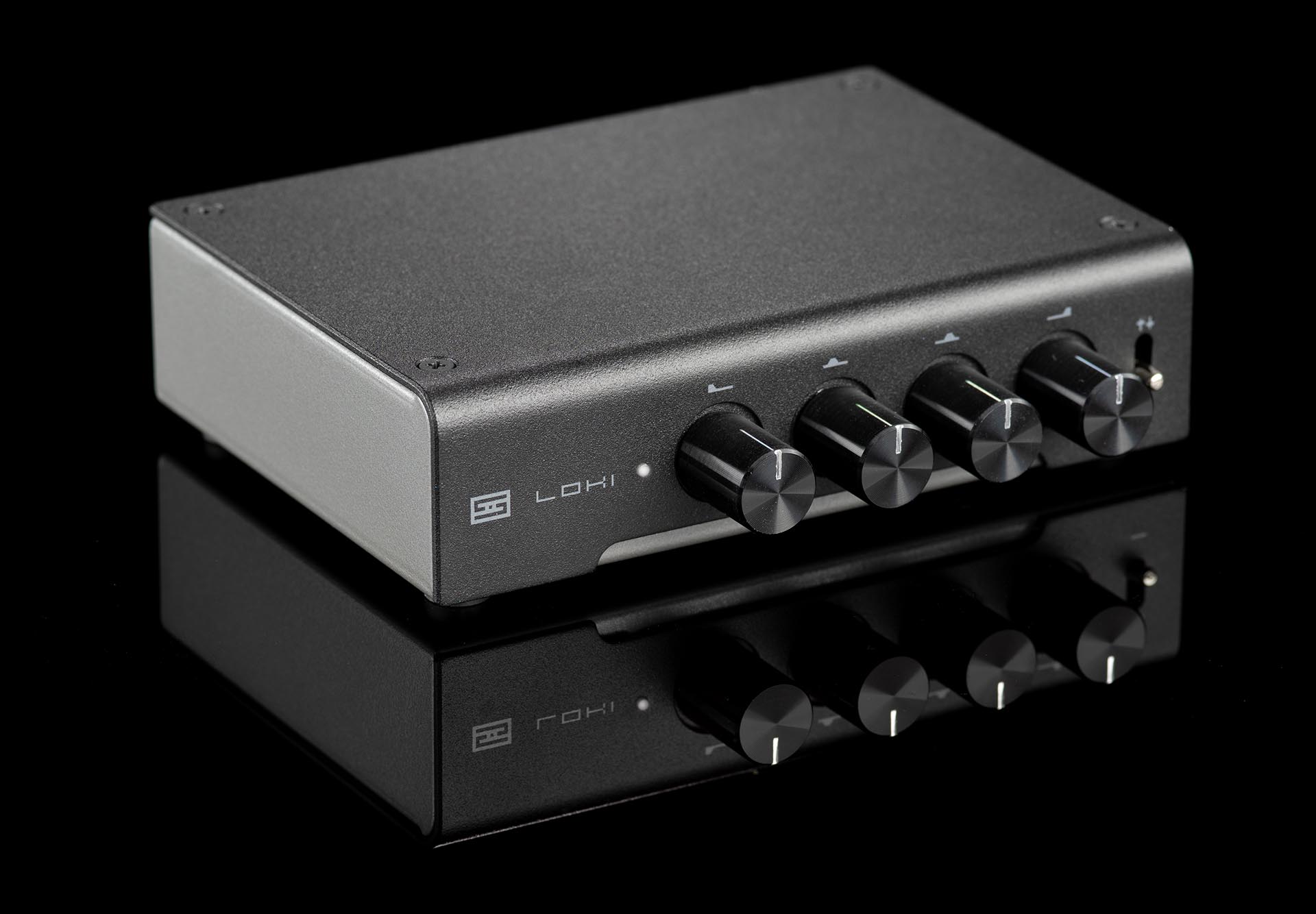
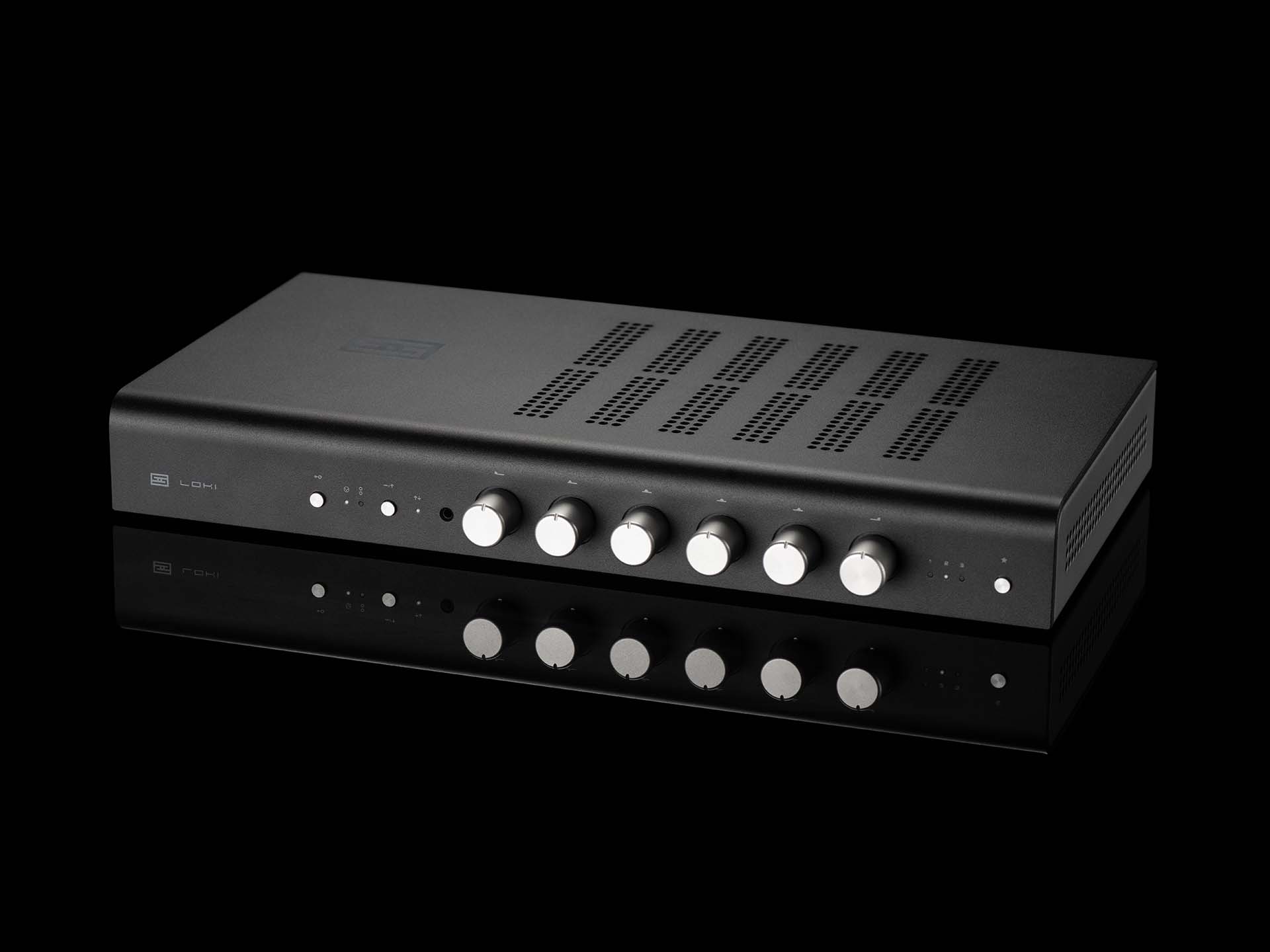
Loki Mini+, from $149. Interested in seeing what a simple EQ can do for your headphones or speakers? Don't want to spend a ton of money? Then Loki Mini+ is for you. Turn the knobs and instantly hear the difference—make your headphones brighter or bossier, or compensate for those not-so-perfect recordings you still enjoy.

Choose Loki Mini+ for:

Headphones or speakers
Most bang for the buck
Stacking with Magni and Modi
Hiding from your audiophile friends (it's small)

See Loki Mini+


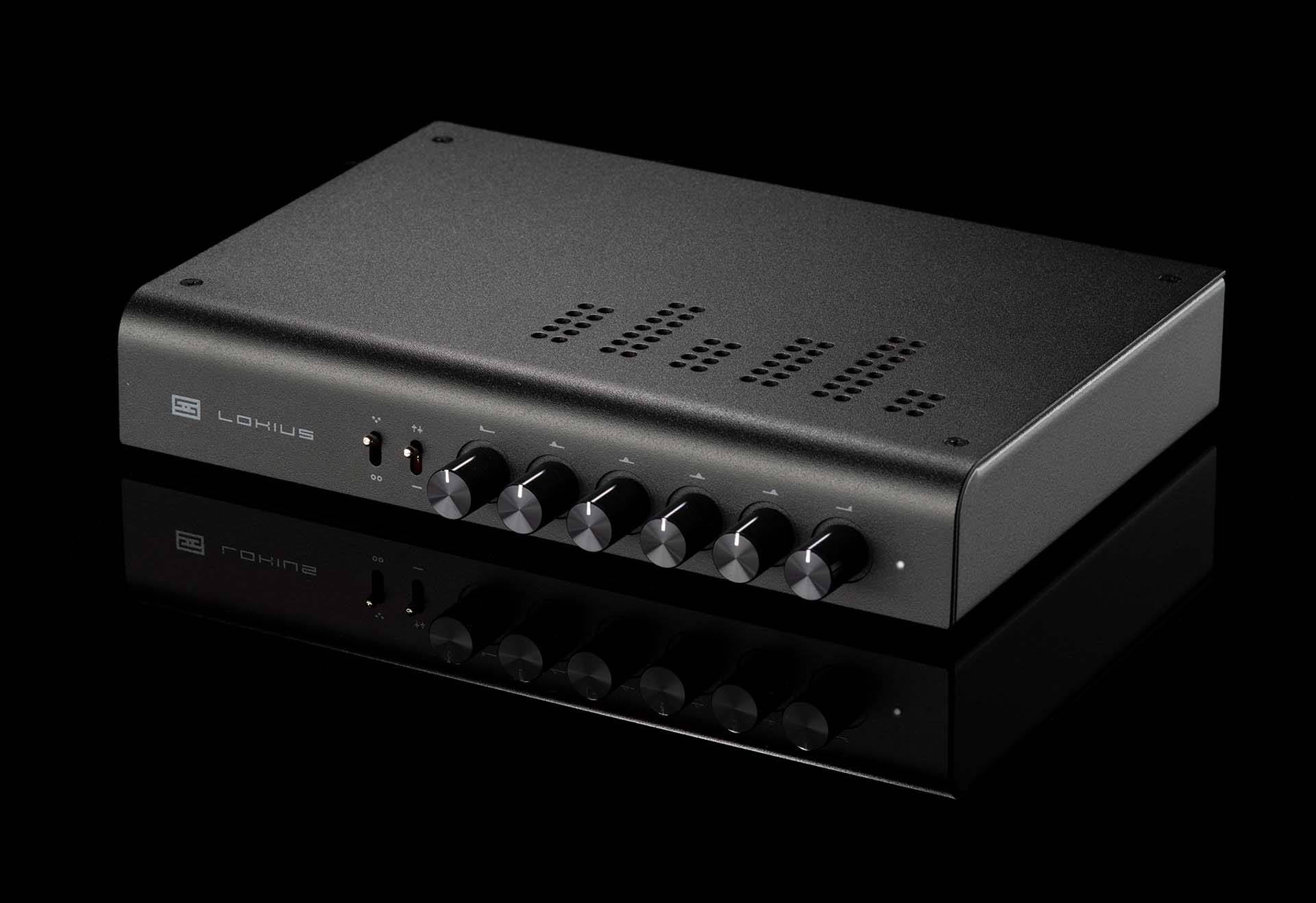
Lokius, from $299. Want more bands (6 to be exact), more control, and the ability to use both balanced and single-ended inputs and outputs? Step up to Lokius, which adds bands, balanced, a more capable "superbuffer" input, and a larger price tag.

Choose Lokius for:

Headphones or speakers
More flexibility—6 bands, 2 more than Loki Mini+, and both XLR and RCA inputs and outputs.
Stacking with Modius, Bifrost, Saga, and most midsize products

See Lokius


Loki Max F, from $1549. Want the most insane equalizer on the planet? Then here you go—100% LC equalization, 6 bands, all remote-controlled, with presets. The knobs even all turn when you use the presets. This cost-no-object piece is for you.

Choose Loki Max F for:

The highest end systems, headphones or speakers
Full remote control of all EQ functions, including presets
100% discrete, 100% LC topology with Nexus™balanced I/O
Stacking with Freya, Gungnir, Yggdrasil, and other full-sized products
A much, much lighter wallet

See Loki Max

Setup

Basic Connections

Don't know which end of the RCA cable to use? here's a brief video of how to connect a stack, as well as more information to get you started with basic connections.


Connecting a DAC to an Amp, Headphone Amp, Preamp, or Receiver

Most equipment uses RCA cables. You'll need a stereo pair of RCA cables—we sell some at various lengths:

PYST RCA Cables

Some systems—balanced systems—use XLR cables. We sell some XLRs as well:

PYST XLR Cables


Connecting a Preamp to an Amp

As above, most equipment uses RCA cables, but some uses XLR cables. You'll need a stereo pair to connect your preamplifier to your amplifier. Determine which kind of cables you need, then use the following links to purchase them.

PYST RCA Cables

PYST XLR Cables


Connecting a CD Transport or Other Digital Source to a DAC

Most CD transports or other digital sources use either optical TOSLINK connections or digital coaxial connections to a DAC. USB connections are covered in the Computer Connections section. For TOSLINK or coax, you'll need the appropriate cable. Determine which kind of connector your digital source uses, and then you can get the right cable at the following links:

Optical (Toslink) cable

Coaxial digital cable (75-ohm RCA)


Connecting a Preamp to a Headphone Amp

Many preamps still have what they call a "tape out," which bypasses the internal volume control of the preamp. This is where you'd want to connect a headphone amp. All you need is a pair of RCA cables, like these:

PYST RCA Cables

If your preamp does not have a clearly labeled "tape out," contact the manufacturer and ask them if they have an output that bypasses the volume control.


Connecting a Receiver or AV Preamp to a Headphone Amp

Many receivers and AV preamps have what they call a "stereo mix" output. This is where you'd connect a headphone amp, with RCA cables like this:

PYST RCA Cables

If your receiver or AV preamp does not have a clearly labeled stereo output, contact the manufacturer for their recommendation as to where to connect a headphone amp.


Connecting to More Than One Device

Let's say you have one of our DACs and you want to connect it to both your headphone amp and a set of powered speakers on your desk (or any other group of two different products, like a headphone amp and a receiver, etc. To do this, you'll need a set of RCA Y-Cables, like this:

RCA Y-cable (1 male to 2 female)

Streamer Connections

Many people skip the computer and go straight to a streamer these days. With many great options ranging from inexpensive Raspberry Pi-based models to full-on dedicated computers, this is an excellent choice. Here's how you get connected.


Connecting to a Roon Device

All of our DACs are Roon Ready. If you're using a Roon streamer, just plug in via USB, and you're good to go. Roon will do all the heavy lifting. All you need is a USB cable, which will vary depending on the USB ports on your streamer and DAC:

Fancy USB A-B Cable

USB-A to Micro-USB cable

USB-C to USB-B cable

USB-C to Micro-USB cable


Connecting to any Non-Roon Streamer

USB: Most streamers, from Raspberry Pi-based models on up, support UAC2 and will plug right into our DACs and work automatically. All you'll need is a USB cable, which varies depending on the USB ports on your streamer and your DAC. Check your ports before ordering!

Fancy USB A-B Cable

USB-A to Micro-USB cable

USB-C to USB-B cable

USB-C to Micro-USB cable


SPDIF: Some streamers may have additional connections available. All of our DACs support optical and coaxial SPDIF connections, and some offer AES and BNC as well. Here are links to some cables you may need:

Mini-Toslink (1/8") to standard Toslink cable

Coaxial digital cable (75-ohm RCA)

AES/EBU digital cable (XLR, 110-ohm)

BNC digital cable (75-ohm)

Computer Connections

"Connecting to a computer" usually means "connecting via USB." Computers can make excellent sources, so here's how you get connected to them.


Connecting to a Windows Computer

USB: You can connect our DACs to Windows machines using USB. Windows 10 and 11 require no drivers for any of our DACs. To use USB, you'll need a USB A-B, USB A-Micro, USB C-B, or USB C-Micro cable, depending on the DAC. Check your DAC before buying!

Fancy USB A-B Cable

USB-A to Micro-USB cable

USB-C to USB-B cable

USB-C to Micro-USB cable


Analog:
You can connect a preamp or headphone amp to your computer via the headphone or line-out jack. Most computers have a 1/8" stereo jack, and our gear uses RCA inputs, So you'll need a cable like this one:

1/8" (3.5mm) to dual RCA cable

Important: Please note that this output may have 6dB less output than typical line-level sources like DACs, so they may not get you to full volume.


Connecting to a MacOS Computer

USB: You can connect our DACs to Macs with USB. To use USB, you'll need a USB A-B, USB A-Micro, USB C-B, or USB C-Micro cable, depending on the DAC. Check your DAC before buying!

Fancy USB A-B Cable

USB-A to Micro-USB cable

USB-C to USB-B cable

USB-C to Micro-USB cable


Optical
: Some older Apple computers also have optical digital output via the headphone jack (as well as some PC motherboards.) To use it, you'll need a cable like this:

Mini-Toslink (1/8") to standard Toslink cable


Analog:
You can connect a preamp or headphone amp to your computer via the headphone or line-out jack. Most computers have a 1/8" stereo jack, and our gear uses RCA inputs, So you'll need a cable like this one:

1/8" (3.5mm) to dual RCA cable

Important: Please note that this output may have 6dB less output than typical line-level sources like DACs, so they may not get you to full volume.


Connecting to a Linux Computer

USB: Our DACs work with any Linux distro that supports UAC2 (USB Audio Class 2). However, you may require additional player software, and we cannot provide deep technical support for Linux. Cable-wise, it's the same as PC or Mac:

Fancy USB A-B Cable

USB-A to Micro-USB cable

USB-C to USB-B cable

USB-C to Micro-USB cable


Analog:
You can connect a preamp or headphone amp to your computer via the headphone or line-out jack. Most computers have a 1/8" stereo jack, and our gear uses RCA inputs, So you'll need a cable like this one:

1/8" (3.5mm) to dual RCA cable

Important: Please note that this output may have 6dB less output than typical line-level sources like DACs, so they may not get you to full volume.

Android Connections

Some people want to use an Android phone or tablet as a source. This is possible on some devices--heck, some just plug in and work with a USB-C cable. Some are more problematic. Here's how you do it:

Connecting to an Android Phone or Tablet


Digital with USB-C Port: Many modern Android devices will connect to your DAC with a USB-C to USB-B cable, but many may need to be run through an external powered USB hub, because they cannot supply enough power to run the DAC.

USB-C to USB-B cable (for DACs with full-size USB-B ports--check before buying!)

Powered USB hub


Digital with USB-Micro Port: You can connect our DACs to many older Android devices using a USB On The Go cable. Devices that shipped above Android M stock probably won't need additional player software, but earlier devices may need USB Audio Player Pro to play music. Some Android devices will need to be connected through a USB powered hub, since they cannot supply enough power to run the DAC.

USB On-The-Go (OTG) adapter

USB Audio Player Pro App

Fancy USB A-B Cable

Powered USB hub


Analog: If your Android phone or tablet has a headphone output, you can connect to a preamp or headphone amp via the headphone jack. You'll need a cable like this one:

1/8" (3.5mm) to dual RCA cable

Important: Please note that the headphone output has 6dB less output than typical line-level sources like DACs, so they may not get you to full volume.

iOS Connections

It's possible to use your iPad or iPhone as a source, as long as you're willing to buy an Apple dongle and/or maybe some cables. Here you go:

Connecting to an iPhone or iPad


Digital (USB-C): If you have a newer iPad or iPhone with a USB-C connector, all you need is a USB-C to USB-C, or USB-C to USB-B cable to connect to our DACs. In some cases, you may need to also use an external USB powered hub to avoid the "this device draws too much power" error.


Digital (Lightning Connector): If you have an iPhone or iPad running iOS7 or above with the Lightning connector, you can use the Lightning to USB 3 Adapter from Apple. You'll also need a USB cable to connect to your DAC. Links for these are below:

Apple Lightning to USB 3 Adapter (allows for charging of the iOS device)


Fancy USB A-B Cable (for DACs that use full-size USB B connectors—check before buying!)

Important: we have not tested with third-party Lightning to USB adapters or cables—use ONLY Apple products in order to ensure that this connection will work!


Analog: Some iPhones and iPads can be can connected to a preamp or headphone amp via the headphone jack, if they still have one. You can do this with the following cable.

1/8" (3.5mm) to dual RCA cable

Important: Please note that the headphone output has 6dB less output than typical line-level sources like DACs, so they may not get you to full volume.

TV Connections

Want to use one of our DACs with your TV? No problem. Most TVs have optical outputs, and can be used with any of our standalone DACs, from Modi on up.

Connecting to TVs


Via Optical: All you need is an optical cable, and the proper setting on your TV. Specifically, you need to set your TV to "2 channel," "stereo," or "PCM" output via the TV's setup menu. If you try to send surround formats like Dolby and DTS to our DACs, it won't work.

Here's an example of the cable you need:

Optical (Toslink) cable


Via an HDMI Audio Splitter: if your TV really, really, really doesn't have an optical output, (a) be very surprised, and (b) consider using an HDMI audio splitter to get that optical output you need. Here's a link to one:

HDMI audio extractor (HDMI to optical/RCA)

Tube Insertion

Protect your tubes and tube gear:

Using Forkbeard

Forkbeard™ is our unique, multi-product, multi-stack control system. More info here: schiit.mom/forkbeard

Forkbeard 001: Dispelling Misconceptions. No WiFi. No account. No cost. No spying.


Forkbeard 101: Basic Setup. 5 products in 2 stacks set up in about 5 minutes.

Forkbeard 102: Basic Use. Total control and visibility of multiple products in multiple stacks.


Forkbeard 103: Multi-User. You can share your Forkbeard devices with a friend. Or not.

Forkbeard 201: DAC Capabilities. Transform Mimir into a digital preamp and EQ (soon on Gungnir 2).

More to come...

Vestri Touch

How to use the touch controls on Vestri:

Troubleshooting

System Problems

Have a system that isn't performing up to snuff? Don't know where the trouble might be? Start here!


Start with the location:

1. Are the amp/DAC near a smartphone or WiFi router? If so, move them away.

2. Are you using any headphone adapters or extension cables? Try a different adapter or extension cable.

3. Do your headphones have a TRRS plug? (Does it have a microphone or smartphone controls?) Use a different cable to the headphone (many of them provide a regular "audio only" cable).

4. Have you checked port power management on Mac or PC? If so, you may have to change port power management settings or use an external USB powered hub.


If that doesn’t affect the results, try the following with the DAC:

1. Ensure that the DAC is selected in both System Preferences/Control Panel and your player software.

2. Try a different USB port.

3. Try a different USB cable (non-audiophile, true USB 2.0-rated, 2m or less in length—this is extremely important)

4. Try different cables from the DAC to your amp.

5. Try the DAC with a different source (streamer, computer, tablet, etc.)


If you’re still having problems:

1. Try the amp with a different source (phone, PC, CD player, whatever works).

2. Try the amp with a different headphone.

3. Replace any headphone adapters or extension cables.

4. If it's a tube amp, swap the tubes into the alternate sockets to see if the problem changes channels. If it changes channels, it's the tubes that are the problem. If the problem is in both channels, try new tubes.

DAC Problems

Don't panic—we have some answers for the most common digital problems right here.


DAC Not Recognized/Disconnecting

1. You may have a low-power USB port. In their quest to save us from excess USB power consumption, Windows and MacOS can cause problems by selectively suspending operation and/or having only low power available from the USB port.

2. On PCs and Macs, you may be able to eliminate it by disabling port power management. See here:

https://www.windowscentral.com/how-prevent-windows-10-turning-usb-devices and https://support.apple.com/en-gb/HT204032

3. For all devices, a definitive solution is to use an externally powered USB 2.0 hub and insert it between your computer and your DAC. This provides power that an underpowered USB port cannot.
Clicking When Changing Sample Rates/Pausing/Etc.

1. It’s totally normal for Bifrost, Gungnir, and Yggdrasil DACs to click (mechanically, from the chassis) during normal operation. That’s the muting relay, doing its job. It clicks whenever the SPDIF datastream is interrupted.

2. If it’s clicking excessively on a Mac or PC, you can reduce it by routing system sounds to the speaker on a Mac, rather than to the Schiit USB Audio Device output. On a PC, you can set system sounds to "no sounds." In both cases, using USB largely eliminates it.

3. If it’s clicking excessively on a CD transport when in pause, the CD transport has a cycling interruption in the datastream. There’s no real fix for this, except getting another CD transport. It won’t hurt the Bifrost or Gungnir, though—the relays are rated for several million cycles.


No Output from the DAC

1. If you're using a computer source, make sure you’ve selected SPDIF output in BOTH System Preferences/Control Panel and your non-iTunes player software (Bitperfect, Amarra, Audirvana, Foobar, JRiver, etc…) Sometimes you’ll have to restart the player again, too. Extra fun: volume all the way down mutes output in Mac OS Ventura.

2. If you're using a disk player, ensure you're plugged into the digital output and that it is functional.

3. If you're using an SACD player, remember that it will not output digital content from SACDs. This is not our fault. Blame Sony's lawyers for that one.

4. A DAC with multiple inputs, like Gungnir or Bifrost, has to be set to the correct input. Believe it or not, some people miss the button on the front panel.

5. If it’s set to the right input and you’re still not hearing music, make sure you don’t have the volume turned all the way down on your player software.

6. Try a different optical or coaxial cable.

7. Try a different transport or computer source.

8. Still no sound? Are you using an amp and headphones or speakers? The DAC won’t make sound by itself.


No 24/176.4 or 24/192 from Optical

1. Most Apple computers lock down the optical output above 24/96. If you’re using a Mac, that’s all you get. Complain to Apple.

2. Many PCs also cannot output anything higher than 24/96 on optical. Even if the PC claims higher than 24/96 on optical, the BIOS or drivers may not be able to enable it. Check the manufacturer’s website.

3. Many longer optical cables will struggle with 24/192 data rates. Use a short, high-quality optical cable. And cross your fingers. Really, if you want to do 24/192 reliably, use USB or coax inputs.


Drop-Outs, Glitches, and Distorted Sound

1. Optical cables can be problematic at higher data rates. See above.

2. USB cables can be problematic as well. Try another one that's 2M or less in length, and at least USB 2.0 rated. Also see power management tips above.

3. If you’re using your computer for more than listening to music, it may have trouble keeping up with your work and your music—especially if it’s a few years old, or using an older operating system.

4. Some anti-malware and anti-virus software may interact with Windows UAC2 USB audio interface and cause audible problems such as dropouts, pops, and glitches. Consider disabling such software and using the standard Windows Security options in Windows 10 or 8.1, including Firewall and Defender options if needed, since these are engineered specifically to work with all Windows drivers and capabilities

Phono Problems

Turntables are much more complex than digital. Here are some tips to get some basic phono problems solved.


Hum and Noise

Stop and read this: it is totally normal to have some residual hum and noise in a phono system, especially when you have the volume cranked to max. This is the reality of having to amplify the tiny signal from the cartridge to line levels. If you want a totally silent system, best to stick with digital.

That said, if you're having BIG hum and noise problems—loud, in-your-face kind of problems—here are some tips for resolving them:

1. Use short, well-shielded cables from the turntable to the phono preamp. This is literally the most important factor for getting low noise. Seriously. Use 1m (3 feet) or less cables with 100% shielding. If you can put the phono preamp right next to the turntable and use even shorter cables, do it.

2. Don't rout your input cables in with power cords or on top of other components. Even with 100% shielding, this can cause hum.

3. Try grounding and not grounding. Most phono systems want a solid, short (1m or less) ground wire between the turntable and phono preamp. But some don't. Try both and choose the one with lowest hum.

4. Don't stack the phono preamp on top of any other electronics. This may cause hum. Same goes for the turntable—keep electronics away from it as well.

5. Don't put routers, phones, tiny PCs, or other wireless electronics near your phono preamp. These devices emit gigahertz RF signals that may be amplified by the sensitive electronics inside the phono preamp.

6. Check the wiring from the cartridge to the phono output to ensure it is solid and undamaged. The problem may not be in the phono preamp at all.

7. Make sure you're using the lowest gain. Moving magnet cartridges (the most typical kind) only need 40dB of gain. More will increase the noise floor. For moving coil, use the lowest gain that allows you to get the volume you need.

8. Don't plug a phono preamp into the PHONO input on a preamp, integrated amp or receiver. Yes, we know, this sounds weird. But the PHONO input of those devices includes its own phono preamp with 40dB of gain and equalization. This means you'll never get the right sound. Connect a phono preamp to any other line-level input, not PHONO.


Hum and Noise with Massive Distortion

1.As above, make sure you are plugging it into a line-level input on your preamp or integrated amp. That is, any input EXCEPT "PHONO." If you're plugging it into phono, you're running the signal through two phono preamps—no bueno!

2. Also, make sure your turntable doesn't have a built-in phono preamp. If it does, you're also using two phono preamps, and will get massive hum and distortion.


The Right Gain Setting

1. The right gain setting can be very different between different cartridges, but the stock 40dB setting is usually the best place to start.

2. The right gain setting gives you good volume without too much noise, and no distortion.

3. Trying different gain settings is fine, but don't switch gains while Mani 2 is on, per the manual.

USB Problems

USB has come a long way—most things should be pretty much "plug and play." Here's some help if there's no music:


No Output from the DAC

1. Make sure you’ve selected the DAC in BOTH System Preferences/Control Panel and your player software (Bitperfect, Amarra, Audirvana, Foobar, JRiver, etc…) Sometimes you’ll have to restart the player again, too.

2. Remember that a DAC with multiple inputs has to be set to the USB input. Believe it or not, some people miss the button on the front panel.

3. If the above doesn’t work, try a different USB cable or USB port. Yes. There are a ton of dead/crap cables out there. And dead USB ports. ESPECIALLY USB-C. You guys wanted it, but the reality is that USB-C cables are LESS reliable than USB-B (printer cable). Start with a different cable. Seriously.

4. If you’re still not hearing music, make sure you don’t have the volume turned all the way down on your player software.

5. Still no sound? Are you using an amp and headphones or speakers? The DAC won’t make sound by itself.


DAC Not Showing Up In Control Panel or System Preferences

If you’re using Windows:

1. Try a different USB cable, 2m or less in length, USB 2.0-rated, non-audiophile type. Seriously. See comments on USB-C above.

2. Try a different USB port. On some PCs, if you only have USB 3.0 ports, you may have to update the USB motherboard driver to ensure they are compatible with USB 2.0.

3. Try a different PC. If it works on that one, guess what? The problem is the other PC.

4. You may be having port power management problems. Try it with an externally powered USB hub.

5. Older, non-Unison USB™ DACs may need Windows drivers on versions of Windows before Windows 10. We no longer provide these drivers.

If you're using a Mac:

1. Try a different USB cable, 2m or less in length, USB 2.0-rated, non-audiophile type. See comments on USB-C above.

2. Try a different USB port.

3. Try a different Mac or PC. If it works on that one, guess what? The problem is the other Mac.

4. You may be having port power management problems. Try it with an externally powered USB hub.

5. If you're on MacOS Ventura, please note the following oddities: (a) it will ask for permission to access your DAC. If you don't say "yes," you won't be able to use it. (b) turning the volume all the way down mutes the output from your DAC. Otherwise, volume does not work.


Distorted Sound or Drop-Outs

1. Try a different USB cable. Long USB cables can be problematic. We recommend a USB cable of 2 meters or less in length. You can use long analog cables on all our DACs if you need to span a distance between DAC and amp. And yes USB-C cables are worse. Start with a different cable.

2. Throw away that hand-made, pure-silver, lambswool-insulated USB cable. Audiophile USB cables can be problematic. Yes, we know, you spent ten billion dollars on it. Well, that’s cool and all, but in our testing, many audiophile brands are not capable of USB 2.0 transmission rates. Get a short, true USB 2.0-rated cable from Belkin (or our PYST cable, which is tested at USB 2.0 speed.)

3. Some USB ports have strange power management behavior. If you have power management options that include things like "Power Saver" mode, the USB port may not provide enough power to the DAC when the computer comes out of sleep mode.

4. Some anti-malware and anti-virus software may interact with Windows UAC2 USB audio interface and cause audible problems such as dropouts, pops, and glitches. Consider disabling such software and using the standard Windows Security options in Windows 10, including Firewall and Defender options if needed, since these are engineered specifically to work with all Windows drivers and capabilities

5. Consider a new computer. Some computers are so old they don't support USB 2.0 (yes, really), and some OSes are so old they don't work well with modern products. Windows 10/11 is best for a Windows machine, and is required for Unison USB. For Macs, you're looking at 10.7 and above for non-Unison USB DACs, and 10.10 and above for Unison USB DACs.


DAC Not Recognized/Disconnecting

1. You may have a low-power USB port. In their quest to save us from excess USB power consumption, Windows and MacOS can cause problems by selectively suspending operation and/or having only low power available from the USB port.

2. On PCs and Macs, you may be able to eliminate it by disabling port power management. See here:

https://www.windowscentral.com/how-prevent-windows-10-turning-usb-devices and https://support.apple.com/en-gb/HT204032

3. For all devices, a definitive solution is to use an externally powered USB 2.0 hub and insert it between your computer and your DAC. This provides power that an underpowered USB port cannot.
Amp Problems

Here's a guide to the most common problems—many of which can be resolved with a cable swap.


Intermittent, Weird Glitchy Noises

1. Cellphone or WiFi router interference. You probably have a cellphone or wifi router too close to your headphone amp or DAC. Move these devices away. No high-res audio device was designed to sit next to a device that can put out watts of gigahertz noise.

2. Bad cables, or badly shielded cables. Try different cables.

3. Computer ground noise. Ground noise can come across from some computers via the USB port. Try a cable with ferrite noise suppressors, or a powered USB hub, or Wyrd.


Hum and Noise

1. Got hum? It could be a ground loop. Try a ground loop isolator or EbTech HumX to eliminate it.

2. Got hiss and hum? Using a tube preamp with high-gain amps and sensitive speakers can get you there. Same as how high-gain, high-powered tube amps may not be the best choice for IEMs and highly sensitive headphones. Switch to low gain mode, if available.

3. Still have noise? Tube amps are going to be more variable in terms of noise than solid-state. Some tubes will be very quiet. Some won’t. That’s why we say, “If you’re looking for certainty, go solid-state.”


Music is Distorted or Garbled

1. If you are trying to use headphones with a microphone that have a TRRS plug, use a regular “audio only” (TRS) headphone cable instead—many headphones include one. Size adapters alone do not work.

2. On speakers, you may have a shorted speaker cable or shorted speaker. Check your connections, try a different set of speakers, and (if you have one) verify with a multimeter.

3. Pure tube amps aren't designed to drive low-efficiency, low-impedance headphones. Trying to run orthodynamic headphones from Valhalla, or even Valhalla 2, will result in distorted music.

4. You may have bad tubes. As tubes age, they can become more distorted and garbled. Try a new set.


Sound is Louder in One Channel

1. Channel imbalance is completely normal on all amps with very small potentiometers, (volume controls) at low listening levels. This includes Magni and Fulla. The channel imbalance should not persist above 8:00 on the volume pot.

2. Channel imbalance shouldn't be a problem with any preamp using relay ladder volume, such as Ragnarok, Saga, and Freya. Look elsewhere in the system, starting with cables.

3. If you need more adjustment range for very efficient IEMs, you can switch to low gain on amps that have a gain switch, or send 24-bit data from the computer to your DAC and reduce volume in software.

4. If you’re using a tube amp, make sure the tubes are matched. Tubes must be carefully matched to ensure channel balanced. Schiit matches its tubes to within 2.5%.


No Output (One or Both Channels)

1. If there's no output in one channel, try different cables. Cables do go bad, and with frightening regularity.

2. If there's still no output in one channel, swap the cables from the source, so they are each going into the "wrong" input (left into right, right into left). If the problem changes channels, the source is at fault.

3. If the problem doesn't change channels with a cable swap, swap the tubes to the alternate side. If the problem changes channels, you have a bad tube.

4. Have you turned the volume control up?

5. Are your headphones plugged in or speakers connected?